Main Screen
The Main Screen serves as the central hub for managing data files and controlling system operations. Users can switch between data acquisition and analysis modes, view recent runs, and load data files to review previous results. Key functionalities include method editing, starting new runs, and selecting specific data files for further analysis.
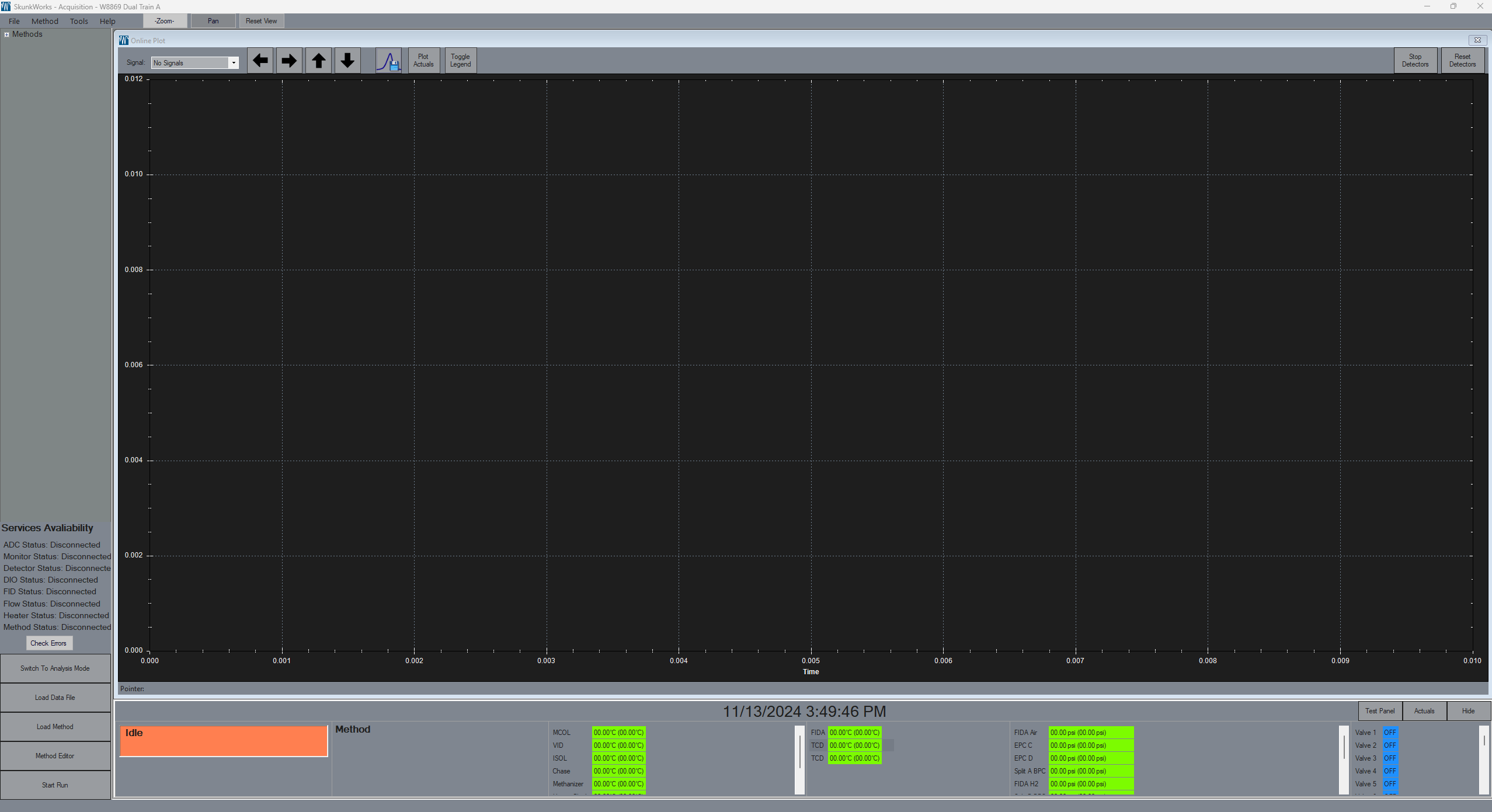
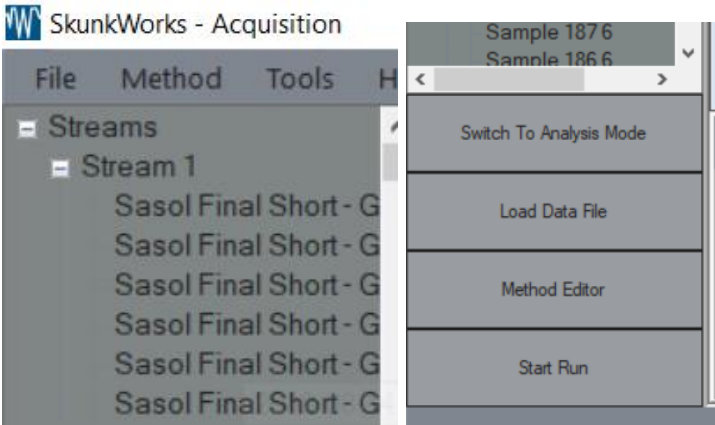
Data File Select
Shows the last several runs from each stream/method.Switch to Analysis/Acquisition Mode
Switches between the two states to view old data while running.Load Data File
Opens a form to select a data file that can be sorted by name, stream, injection date, etc.Method Editor
Opens the Method Editor with the currently loaded method’s settings.Start Run
Opens a form to start a new run with a given method and any run notes.Hide
Hide Status ScreenShow
Show Status Screen

Test Panel
Opens the Test Panel Screen, more information on: Test Panel page.
Menu Bar
The Menu Bar provides quick access to essential file operations, such as loading data files for review and exiting the application.
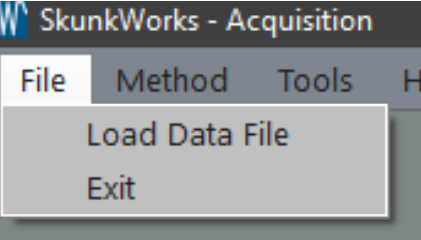
Load Data File
Opens a form to select a data file that can be sorted by name, stream, injection date, etc.Exit
Exits the application.
Method
The Method screen provides tools for managing and configuring methods, including creating new methods, editing existing ones, loading methods, and initiating runs. It also offers features for calibration, data overlays, and instrument configuration.
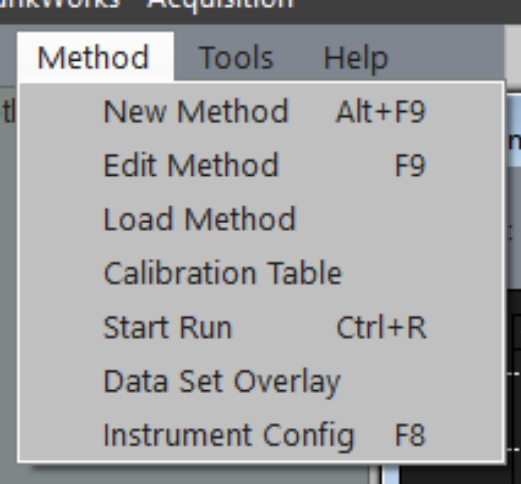
New Method
Opens the Method Editor in a state to create a new method from scratch.Edit Method
Opens the Method Editor with the currently loaded method’s settings.Load Method
Opens a form to select a method to load and gives the option to load it to the instrument.Calibration Table
Opens a calibration table to the front of everything else.Start Run
Opens a form to start a new run with a given method and any run notes.Data Set Overlay
Opens a form to select multiple data sets from any method or stream to overlay on each other.Instrument Config
Opens a form for creating or modifying the existing instrument configuration.
Tools
The Tools tab offers a collection of utilities for system diagnostics, testing, and customization. It includes options to configure the program's display settings, interact with instrument components, and view real-time outputs from detectors. Other functionalities provide debugging tools and access to detailed performance and service logs, allowing for in-depth troubleshooting and system monitoring.
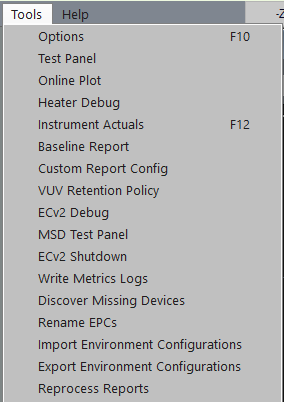
Options
Opens a form with various program options such as the current data finder view (stream vs method) and line width.Test Panel
Opens a form for switching valves, setting heater temps, epc flows, etc.Online Plot
Displays the current output of any FID/TCD/PDHID detectors.Heater Debug
Opens the Heater Debug form.Instrument Actuals
Opens a detailed window with all the current flows, temperatures, valve states, etc.Baseline Report
Opens the Baseline Report form.Custom Report Config
Opens the Custom Report Config form.VUV Retention Policy
Opens the VUV Retention Policy form, more information on: VUV Retention Policy page.ECv2 Debug
Opens the ECv2 Debug form.MSD Test Panel
Shows the current MSD state if available.ECv2 Shutdown
Shuts down the ECv2 services.Write Metrics Logs
It writes the service logs for the requests that have failed and it shows the specific error and quantity of times that the error failed.Discover Missing Devices
This tab opens the Expected Devices Missing screen to the user.Rename EPCs
Opens the Rename Discovered EPCs form, more information on: Rename Discovered Flow Devices page.Import Environment Configurations
This tab gives the user a screen to select a zip file. It needs to have the same structure from the export button.Export Environment Configurations
It will export a zip file to your Desktop. This file will contain the Instrument, Method, Logs, and Report folders.Reprocess Report
It will open a new screen where you can select the report you want to be reprocessed.
Help
The Help tab provides access to essential support features, including viewing software version information, collecting system logs for troubleshooting, and opening an on-screen keyboard for touchscreen usage.
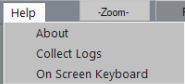
About
Opens the "About" screen with software information such as the current version.Collect Logs
Generate and collect the system logs.On Screen Keyboard
Opens a touch keyboard.
Chromatogram Touch Settings
The Chromatogram Touch Settings tab allows users to customize interaction with chromatogram displays, enabling touch gestures for zooming and panning, as well as providing a reset option to view all data at once.

Zoom
Enables touch and drag to zoom.Pan
Enables touch and drag to pan.Reset View
Zooms out and shows all data.