Method Editor
Method Editor is where the user can create and edit methods.
General - Method Editor
The General section of the Method Editor provides essential settings for managing the method's parameters, including instrument configuration, sample naming conventions, and run durations. Users can load existing methods, create new ones based on current settings, and adjust acquisition parameters for optimized performance during runs. Additional functionalities like printing and generating PDF versions of the method are also available.
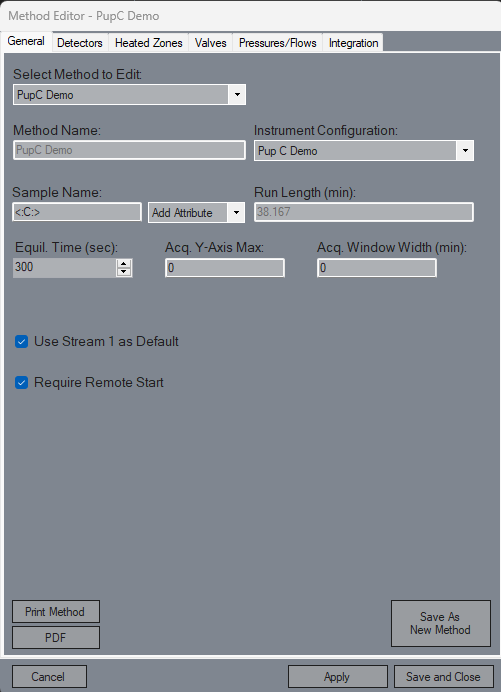
Select Method to Edit
Loads the desired method into the editor.Method Name
Current method’s name. This name cannot be altered.Instrument Configuration
Instrument configuration that the method should follow as far as valving, heaters, detectors, etc.Sample Name
Default name to give each sample running this method. Attributes such as datetime or a counter can be added to the sample name and automatically generated.Run Length
How long the run will last, auto-calculated based off the longest heater profile.Save As New Method
Takes the current settings and allows you to create a new method based on them.Equilibration Time
How long the instrument must sit at its desired setpoints at the start of a run before moving on.Acquisition Y-Axis Max
Max y value to show while running a sample.Acquisition Window Width
Keeps the x-axis a constant size and shifts accordingly during a run.Use Stream 1 Default
Uses setting for stream 1 across all other streams. Streams can have their own unique detector settings and integration events.Require Remote Start
Requires some trigger to start a run after equilibrating, such as from the WinIStatus Remote Start event or by clicking the ‘Start Run’ button.Print Method
Prints the method out to the default printer.PDF
Generates a PDF of the method to be stored on the computer or any connected flash drive.
Detector Settings
The Detector Settings section allows users to configure and manage various detectors for a method. It includes general settings applicable to all detectors, as well as specific configurations for each type of detector.
General
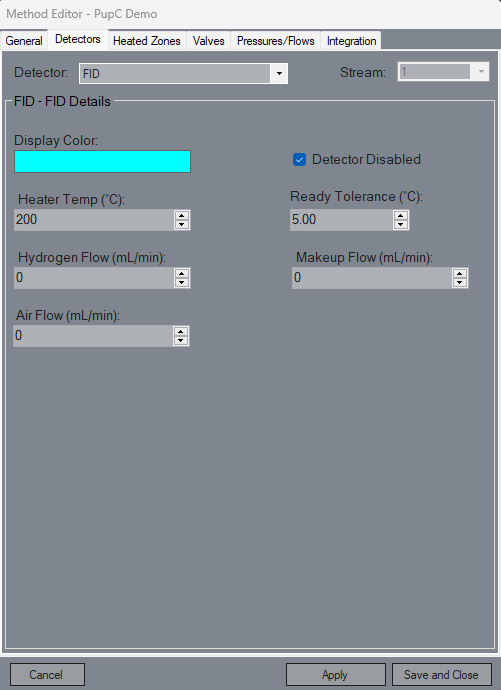
This section provides foundational commands for configuring detectors, including selection options, stream assignment, display colors, and enabling or disabling data collection.
Detector Selection
Picks the desired detector to edit.Stream Selection
Changes the settings for the detector for a desired stream. If ‘Using Stream 1 as Default’ is selected, this will be disabled.Display Color
Color this detector will show up on the chromatogram.Detector Disabled
Detector will not collect data during the run if checked.
FID
The FID (Flame Ionization Detector) settings focus on adjusting parameters such as heater temperature and pressures for air, hydrogen, and makeup gas.
Heater Temperature
Temperature to set the configured FID heater to at the start of the run.Air Pressure
Pressure to set the configured FID Air EPC to at the start of the run.H2 Pressure
Pressure to set the configured FID H2 EPC to at the start of the run.Makeup Pressure
Pressure to set the configured FID Makeup EPC to at the start of the run.Ready Tolerance
Tolerance to finish the equilibration.
TCD
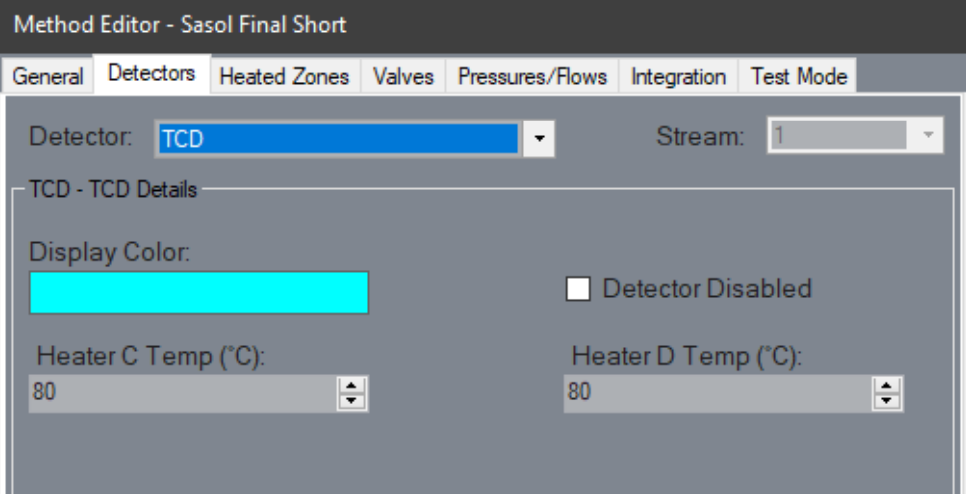
In the TCD (Thermal Conductivity Detector) settings, users can configure the heater temperatures for two components.
Heater C Temperature
Temperature to set the configured TCD C heater to at the start of the run.Heater D Temperature
Temperature to set the configured TCD D heater to at the start of the run.
PDHID
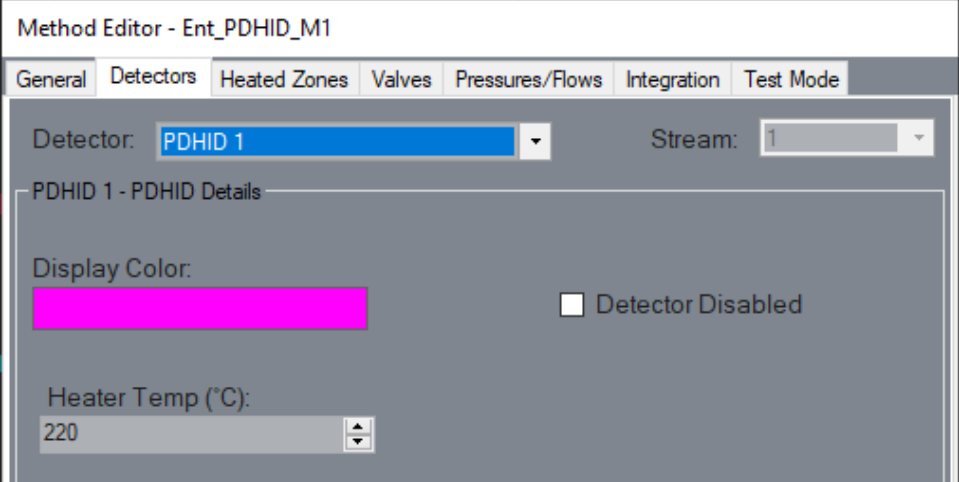
The PDHID (Pulsed Discharge Helium Ionization Detector) settings allow for the adjustment of the heater temperature.
Heater Temperature
Temperature to set the configured PDHID heater to at the start of the run.
VUV
The VUV (Vacuum Ultraviolet Detector) settings involve selecting a sampling sequence and specifying file paths for quantitation and acquisition files, with an option to use VUV Analyze report files for enhanced data analysis.
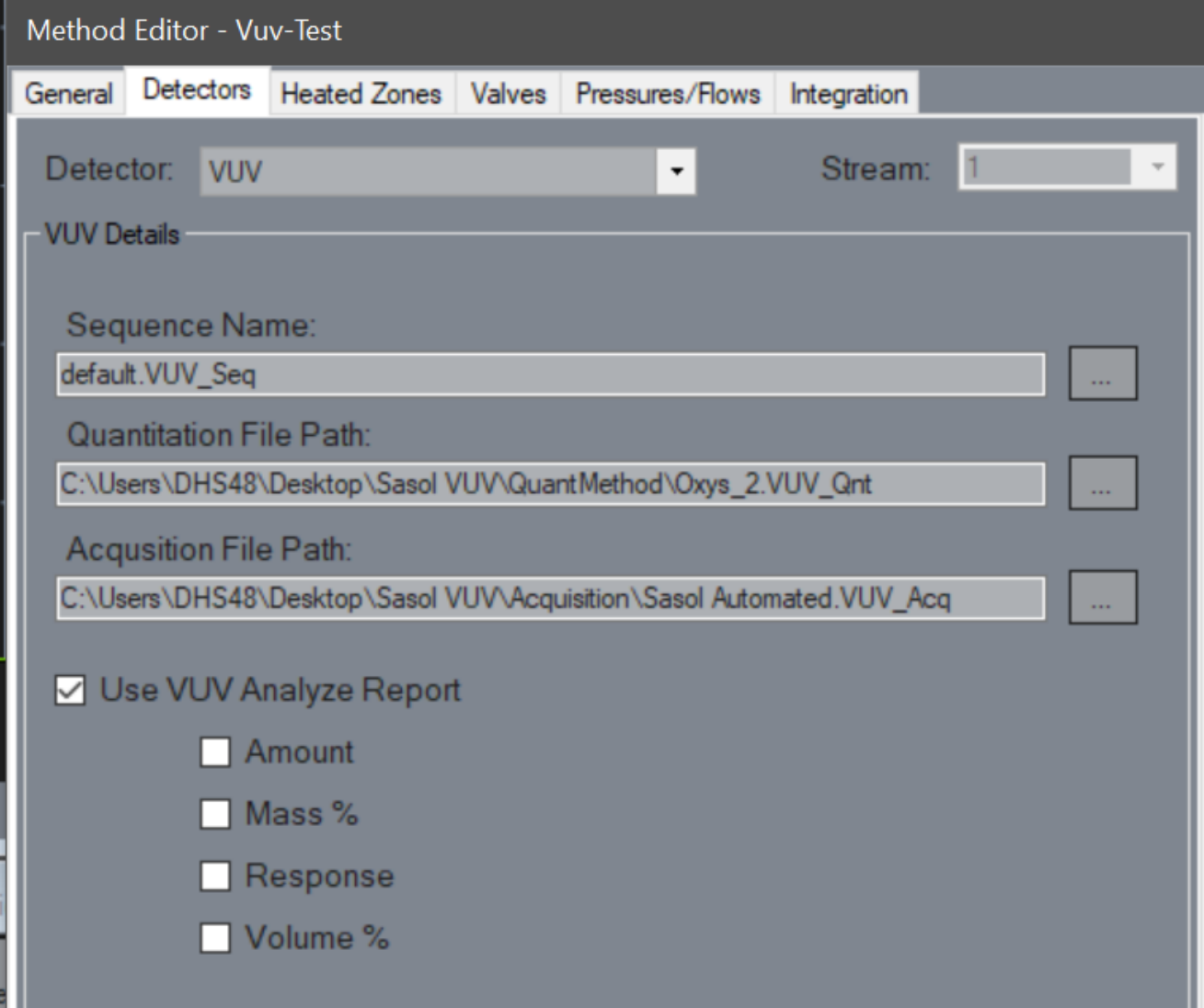
Sequence Name
VUV sequence to use for sampling.Quantitation File Path
The path to the VUV_Qnt file used by VUVision.Acquisition File Path
The path to the VUV_Acq file used by VUVision.Use VUV Analyze Report
Read from the VUV Analyze report file rather than the VUVision report. Reports the selected values below.
Mass Spec
The MSD (Mass Spectrometer Detector) settings are focused on tuning parameters, ion lists, and scanning frequencies. This section allows users to define specific ions of interest and configure scanning parameters for detailed mass analysis.
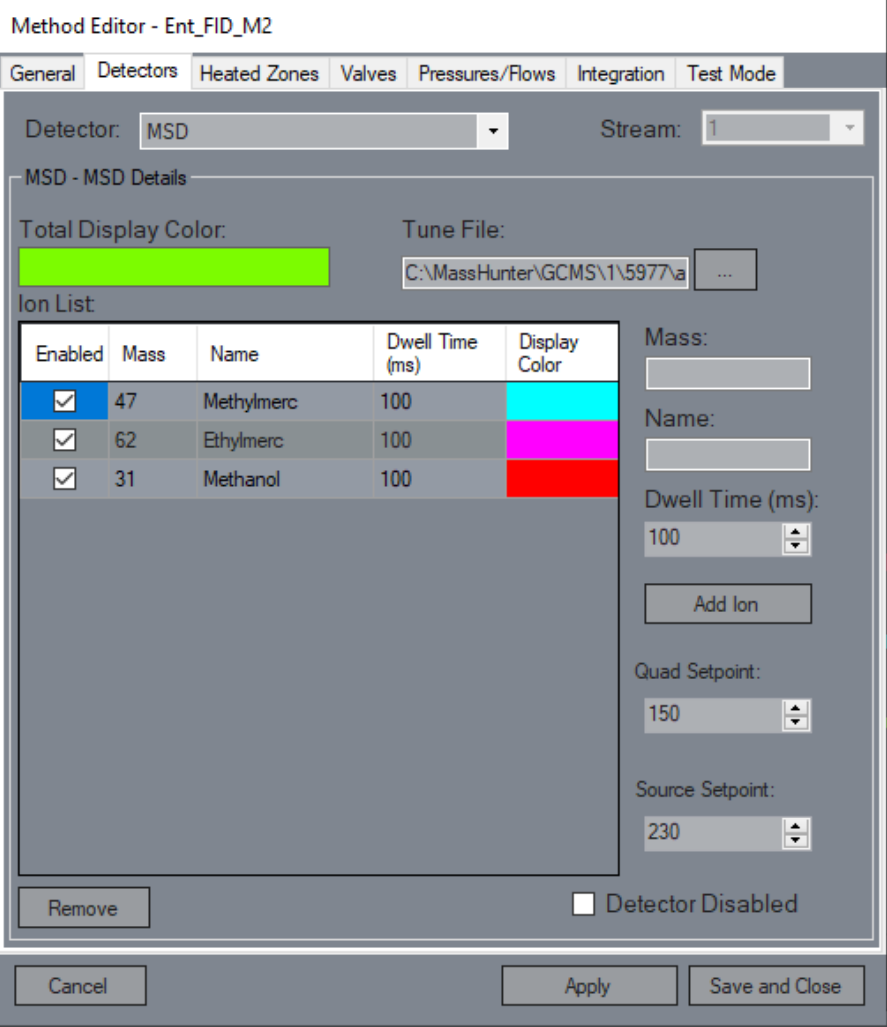
Tune File
The location of the MSD tune parameters.Ion List
The set of configured ions to scan for while sampling.Mass
The m/z to scan for.Name
The given name for a component at that m/z.Dwell Time
The frequency of scanning.Add Ion
Adds an ion to the table with the given settings.Quad Setpoint
The temperature to set the MSD quad to.Source Setpoint
The temperature to set the MSD source to.
Heated Zone Profiles
The Heated Zone Profiles section allows users to configure the thermal profiles for various heaters, enabling precise control over temperature ramps, hold times, and cooling settings.
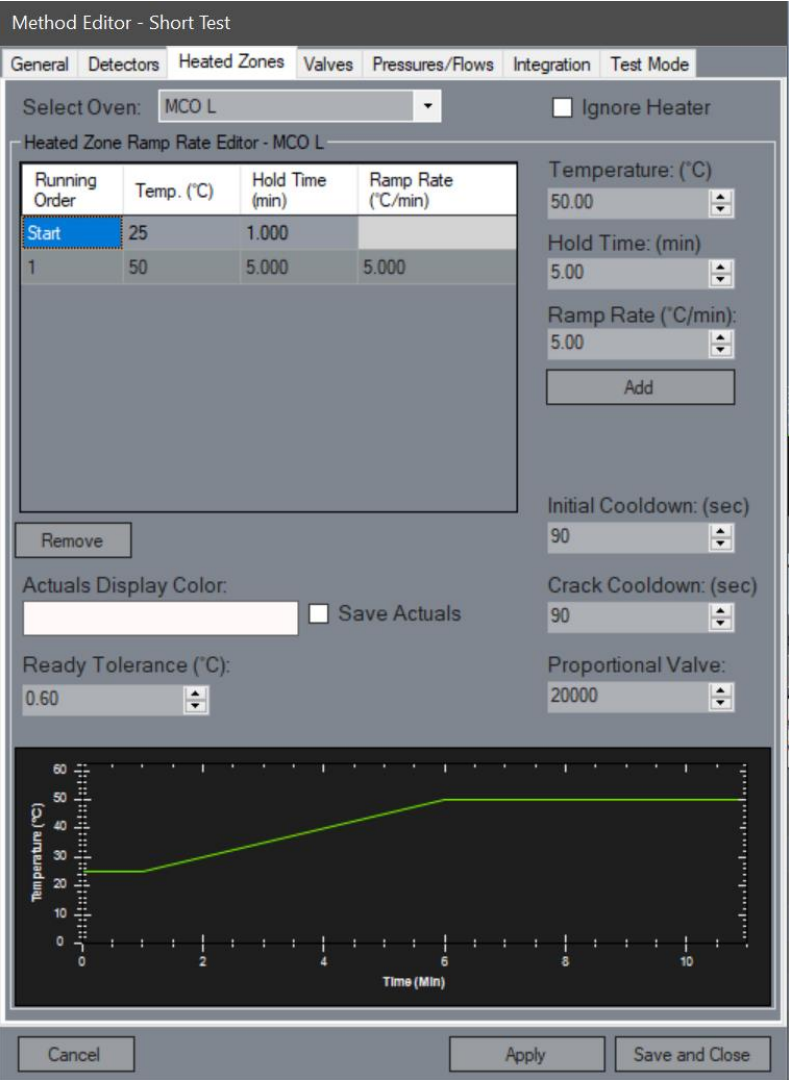
Select Oven
Selects the desired heater’s profile to edit. All heaters can have ramps, but depending on heater type may not be able to keep up with the ramp given.Ramp Rate Editor
Shows and allows for modification of existing ramp settings.Remove
Removes the selected ramp from the table.Temperature
The target temperature to reach.Hold Time
How long to hold once the temperature has been hit.Ramp Rate
How many degrees to go up per minute until the target is reached.Add
Adds the configured ramp to the ramp rate table.Initial Cooldown
Sets the amount of time an MCO is set to fully open and cool down after a run.Crack Cooldown
Sets the amount of time after the initial cooldown to continue cooling, but with the MCO only cracked open.Proportional Valve
Sets how open the proportional valve is for the airflow cooling the MCO. Higher values provide more flow.Actuals Display Color
The color that the heater will be displayed as when plotting the actuals.Save Actuals
While checked, the actuals and setpoints will be saved along with the sample and can be viewed.Ready Tolerance
The amount of tolerance from the initial setpoint that is allowed before the heater is considered not ready.Ignore Heater
While checked, this heater will not be included in the equilibration checks but will still have initial setpoints and ramps applied during the run.
Pressure/Flow Rate Profiles
The Pressure/Flow Rate Profiles section enables users to define and modify the ramping profiles for electronic pressure controllers (EPC) and mass flow controllers (MFC).
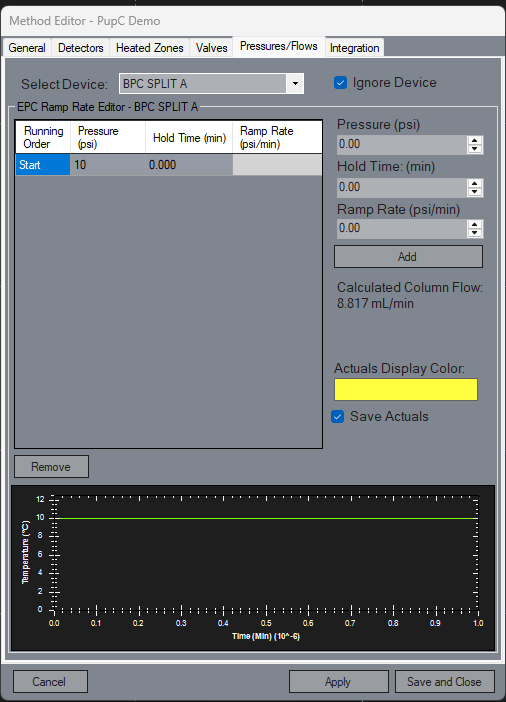
Select Device
Allows for selecting the EPC/MFC’s ramping profile.Ramp Editor
Shows and allows for modification of existing ramp settings. When the start Flow/Pressure changes, it will update the Calculated Column Flow and Split Ratio values.Remove
Removes the selected ramp from the ramp editor.Pressure/Flow Rate
Target pressure/flow rate to hit.Hold Time
The amount of time to sit at the target pressure/flow rate.Ramp Rate
Pressure/flow rate to go up per minute until reaching the target.Add
Adds the ramp to the ramp editor.Calculated Column Flow
Calculation of the Column Flow, it will only show up when the EPC/BPC is related with a valid inlet and column.
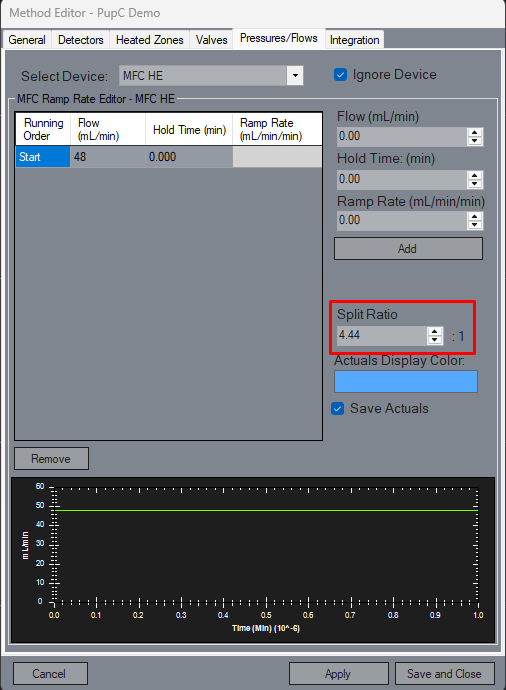
Split Ratio
Split ratio field, it will only show up when the MFC is related with a valid inlet and column. When changed it will update the start Flow in the table.Actuals Display Color
The color that the device will be displayed as when plotting the actuals.Save Actuals
While checked, the actuals and setpoints will be saved along with the sample and can be viewed.Ignore Device
While checked, this device will not be included in the equilibration checks but will still have initial setpoints and ramps applied during the run.
Integration Events
The Integration Events section facilitates the setup of unique integration parameters for each detector and signal, allowing for both default and timed events to be configured.
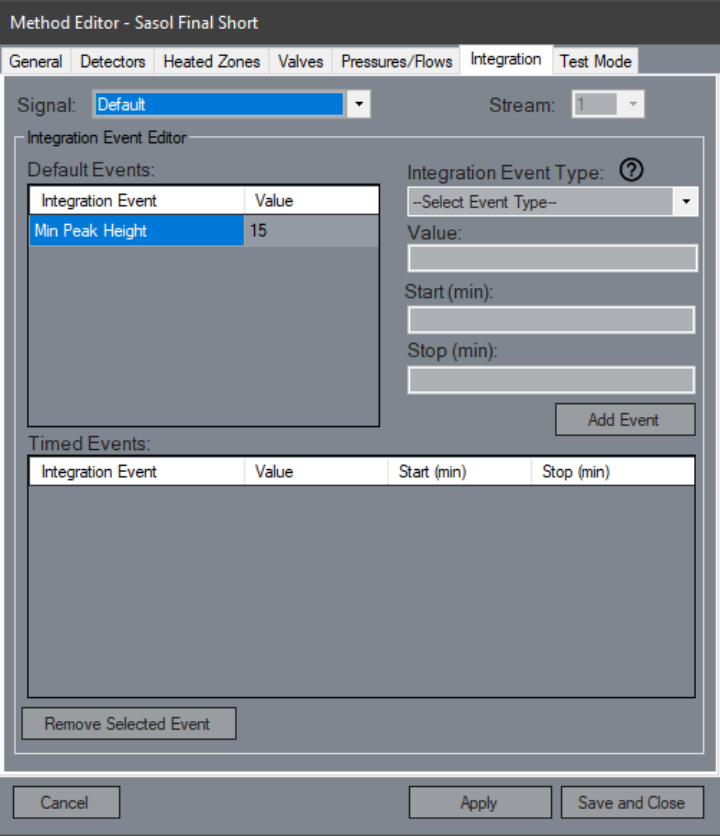
Signal Select
Each detector and signal can have its own unique integration events. The ‘Default’ signal will apply to all signals unless the signal has an event to override it.Stream Select
Integration events can vary by stream. If ‘Use Stream One Default’ is selected, this will be disabled.Default Events
Integration events that are applied across the whole run time on a signal.Timed Events
Integration events that are only applied at the given time.Event Type
The type of integration event to create.Value
The value for the event to create. This will typically be a positive number or true/false.Start Time
The time to start the event at. Defaults to 0 if no time is given.Stop Time
The time to end the event at. Defaults to 999 if no time is given.Add Event
Creates an event with the defined values. If both start and stop are empty on creation, the event is designated as a default event.Remove Event
Removes the selected event from the event table.
Integration Event Types
In the Integration Event Types section, users can establish criteria for peak acceptance, including minimum peak width, height, and area, as well as sensitivity settings for baseline noise and slope derivatives to refine data integration.
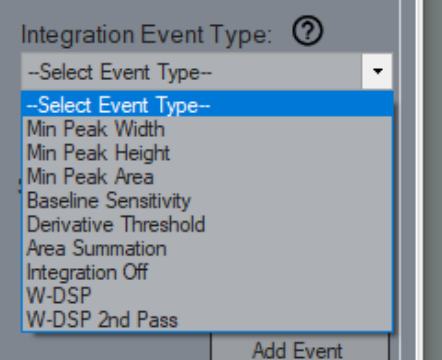
Minimum Peak Width
Peaks must have above the minimum width to not be rejected.Minimum Peak Height
Peaks must have above the minimum height to not be rejected.Minimum Peak Area
Peaks must have above the minimum area to not be rejected.Baseline Sensitivity
Sensitivity of baseline noise against peak height. Range: 0-100.Derivative Threshold
Sensitivity of integrator when checking slope derivatives. Range: 0-1000.Area Summation
All data points in this interval will be integrated as a single peak.Integration Off
All data points in this interval will be ignored for integration.W-DSP
Filters the signal data to reduce noise.<Window (0-25)>,<Order (0-6)>W-DSP 2nd Pass
Filters the signal data to reduce noise, applied after the first pass.<Window (0-25)>,<Order (0-6)>
Test Mode
The Test Mode section provides the ability to simulate runs using existing data sets, specifically designed for testing purposes, allowing users to validate configurations without conducting actual experiments.
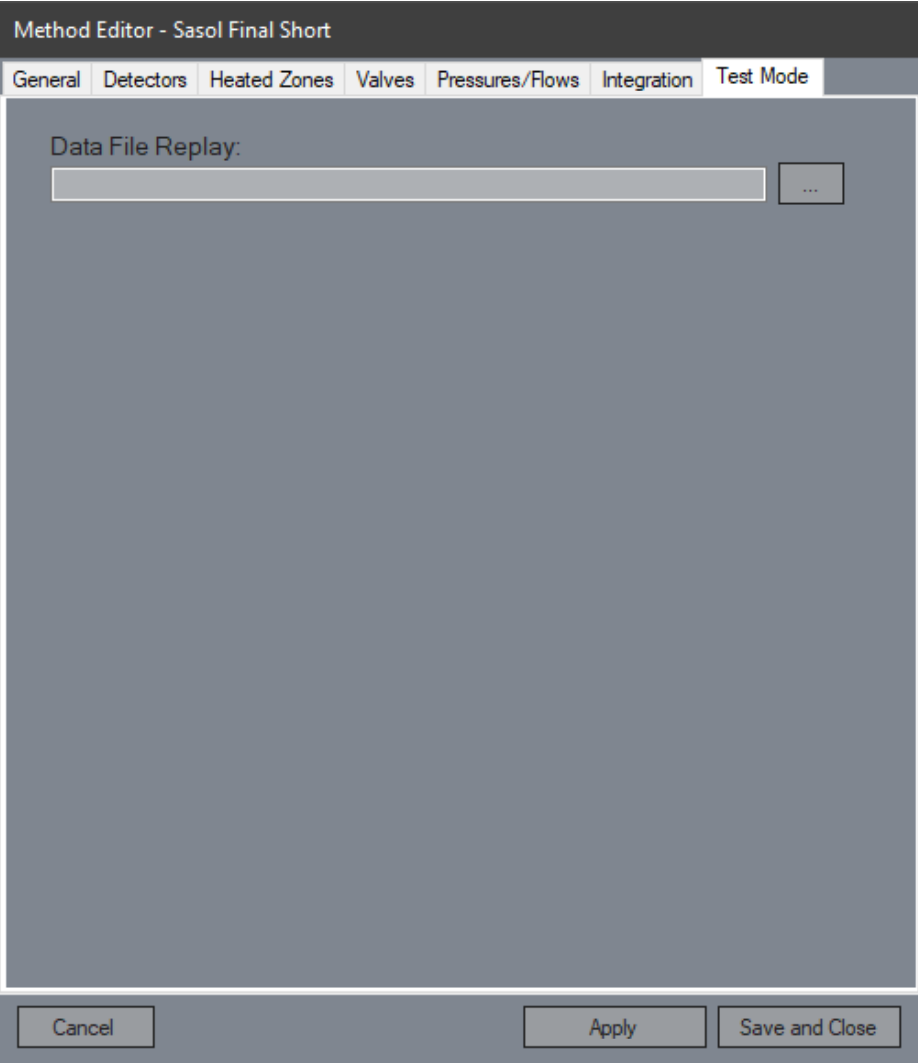
Data Replay File
Used to simulate running with an existing data set. This is only visible if Skunkworks is in Test Mode.