Instrument Configuration
The Instrument Configuration section provides comprehensive options for setting up and managing instrument parameters.
Basic Settings
The Basic Settings section allows users to edit or create instrument configurations, set names, and manage shortcuts while providing options to save, apply, or delete configurations as needed.
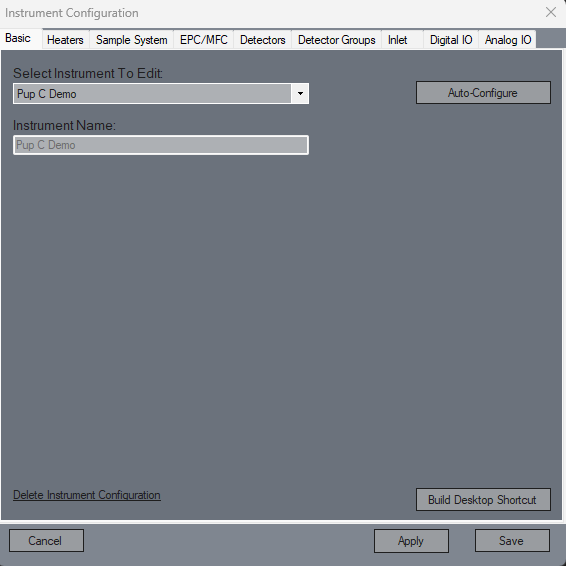
Select Instrument To Edit
Whether you're tweaking an existing setup or starting fresh, this option lets you pick which instrument configuration to work with or create a brand-new one.Instrument Name
The identity of your configuration — Skunkworks will use this name during startup to load the right settings. Make sure it stands out!Build Desktop Shortcut
For those who love convenience, this button creates a shortcut right on your desktop, giving you one-click access to your chosen instrument configuration.Delete Instrument Configuration
Done with a particular configuration? This option wipes it from the system permanently, freeing up your list of setups.Cancel
Decided against making any changes? Hit this to close the screen without saving anything.Apply
Satisfied with the tweaks but still want to stick around? Apply saves your changes but keeps the configuration window open.Save
The ultimate commit—locks in your changes and closes the configuration screen, ready for action!
Instrument Auto-Configure
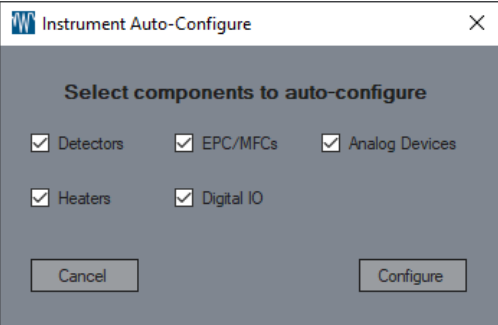
In the Instrument Auto-Configure section, users can select specific components of the instrument for automatic configuration.
Instrument Auto-Configure
Tick the boxes for which parts of the instrument you want auto-configured by Skunkworks. If some devices are already set up, only new ones will be added.
Heaters
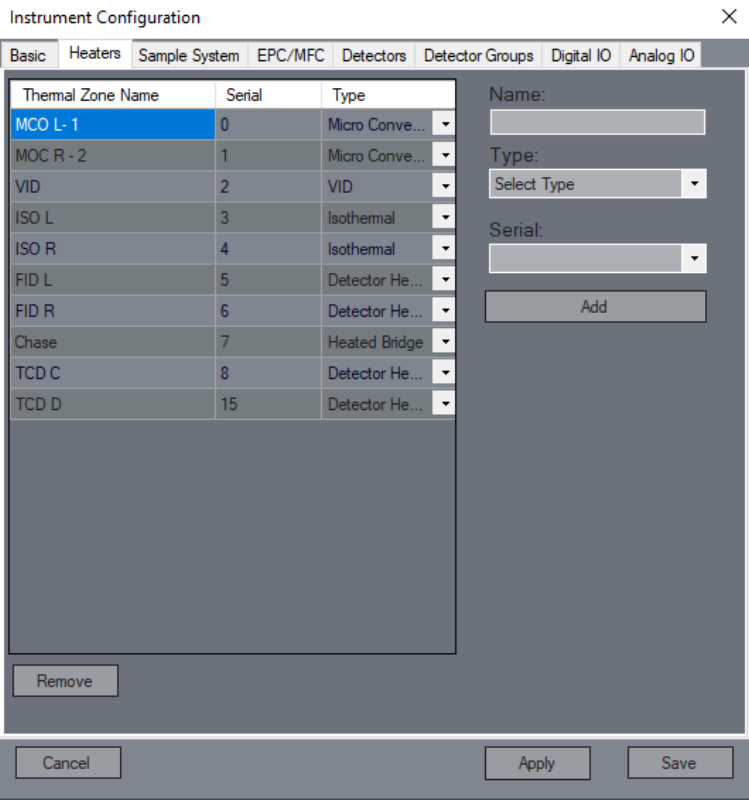
The Heaters Settings section enables users to define and manage individual heaters, including their names, types, and serial IDs.
Name
Each heater gets its own unique name for easy identification.Type
What kind of heater is this? Options include MCO, Isothermal, VID, heated bridge, and detector heater.Serial
The reference ID for the heater on the instrument’s control board. Values range from 0 to 15.Add
Satisfied with your heater settings? Hit 'Add' to populate it in the list.Remove
Need to clear something out? Select a heater and remove it from the list.
Sample System
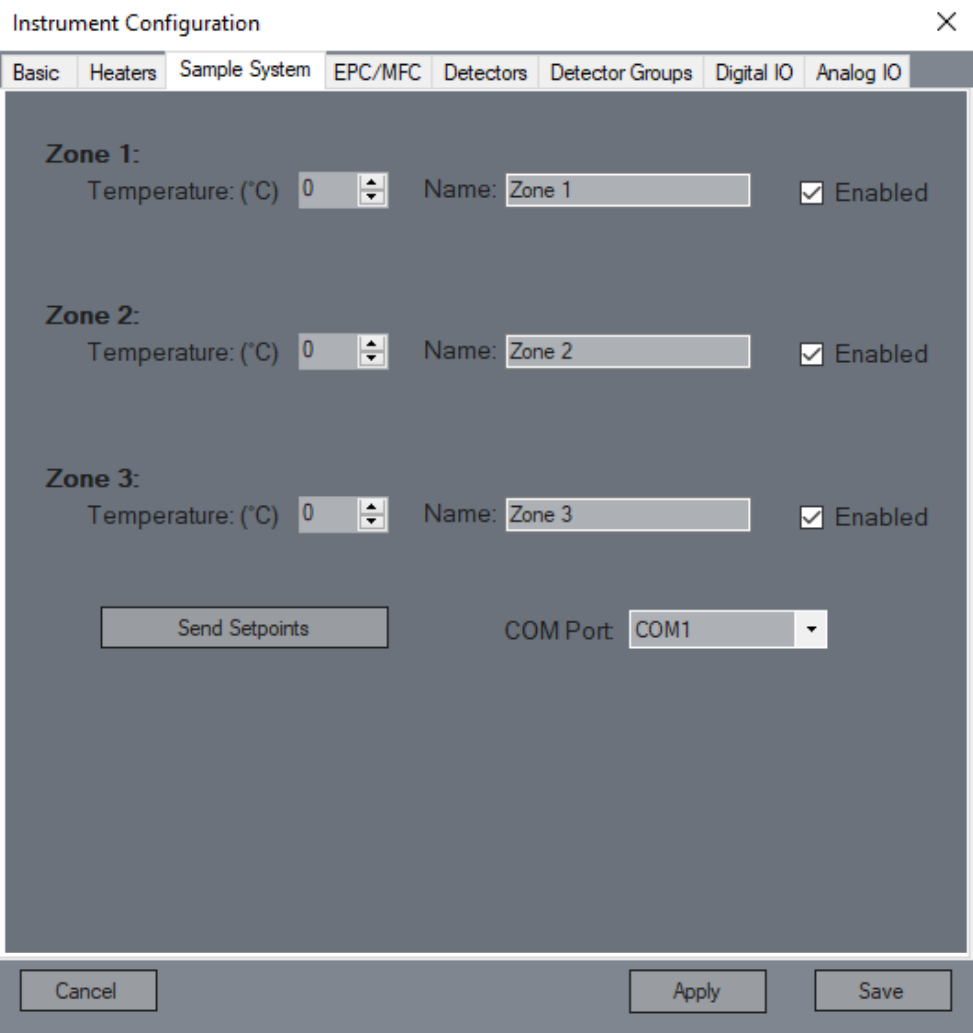
The Sample System Settings section allows users to configure temperature targets and names for various sample system heaters, as well as manage their operational status and communication ports.
Sample System Configuration
Configure your sample system heaters, such as Watlow devices, by entering the target temperature and naming the zones. You'll need the default password: wasson.Temperature
Define the target temperature that this zone will aim for.Name
The display name for this zone—keep it clear so you know what’s what.Enabled
Only zones that are enabled will be displayed and controlled by the system.Send Setpoints
Sends the current temperature settings to the sample system heater.COM Port
Specifies which COM port the heater is connected to on the instrument PC.
EPC/MFCs
The EPC/MFCs Settings section allows users to configure unique IDs and types for each EPC or MFC device.
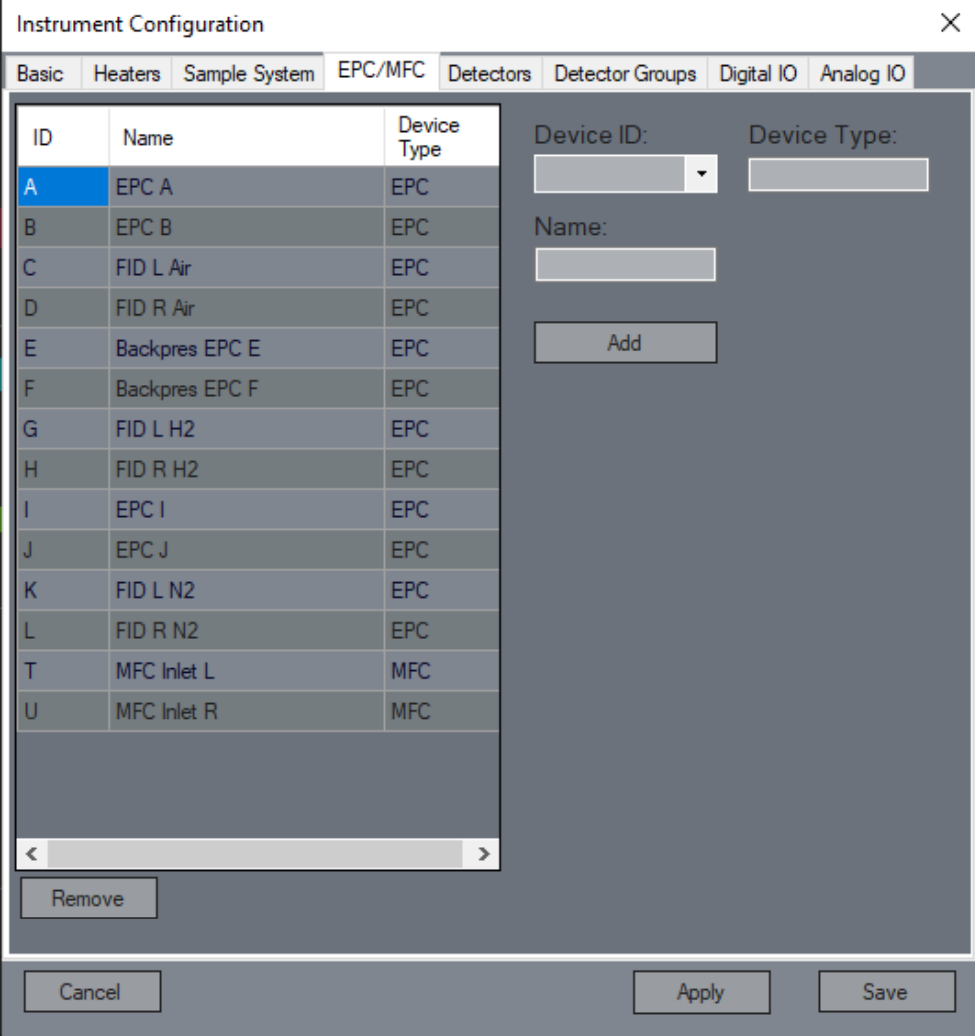
Device ID
The unique ID used by the control board to communicate with each EPC or MFC device. IDs from A to U are allowed, with EPCs using A-S and MFCs using T-U.Device Type
Determines whether the device is an EPC or MFC based on the ID. EPCs occupy A-S, while MFCs reside in T-U.Add
Adds the EPC/MFC with the current settings to the configuration list.Remove
Select a device from the list and remove it with a click.
Detectors
In the Detectors Settings section, users can name and identify various detectors, including their serial numbers or IP addresses.
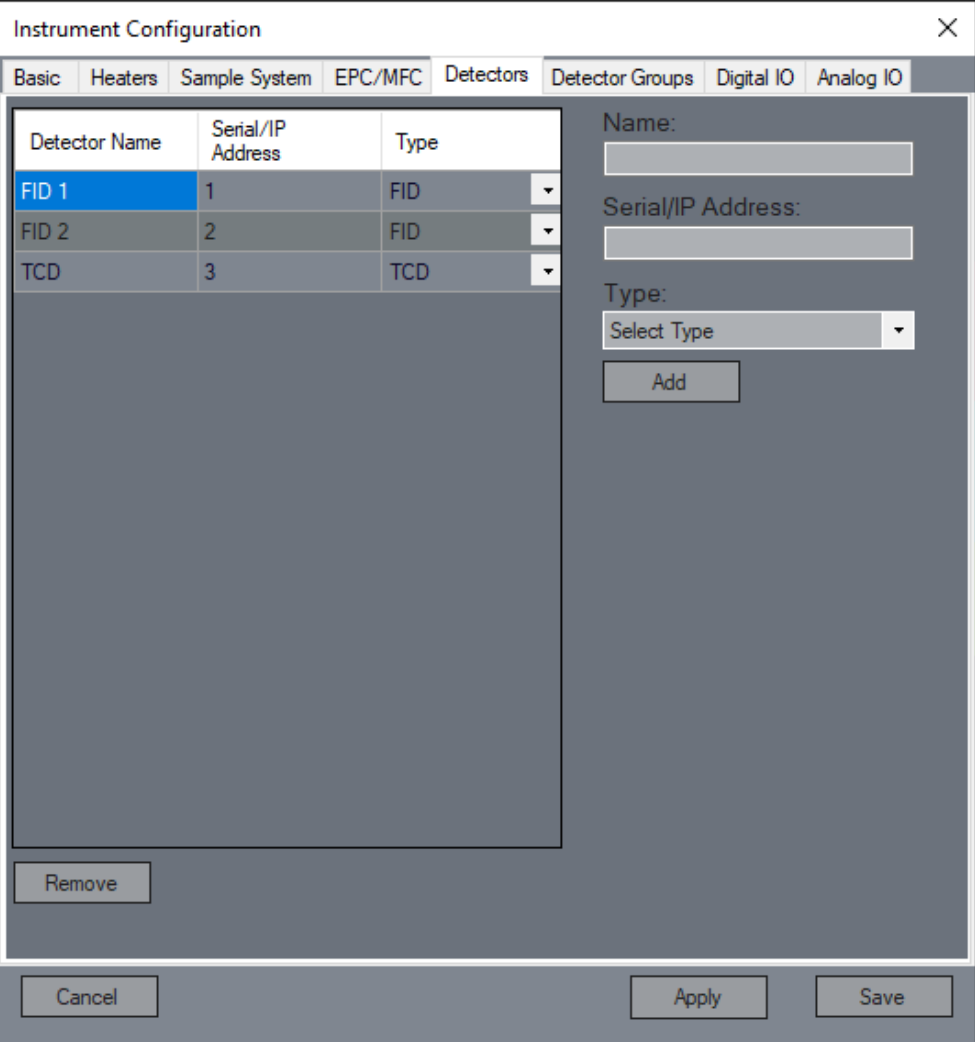
Name
The display name for the detector. When using Auto-Configure, the name will automatically be set to match the detector type and serial number.Serial/IP Address
FID, TCD, and PDHID detectors will have a serial number (0-15), while MSD and VUV detectors use an IP address.Type
The type of detector in use: FID, TCD, PDHID, MSD, or VUV.Add
Adds the detector to your setup with the current settings.Remove
Select a detector to remove it from the list.
Detector Groups
Configure how detectors are grouped with various heaters or EPCs for optimal performance.
FID Group
The FID Group Settings allow users to configure the hydrogen, makeup, and air EPCs, link heaters, and set ignition parameters for the FID.
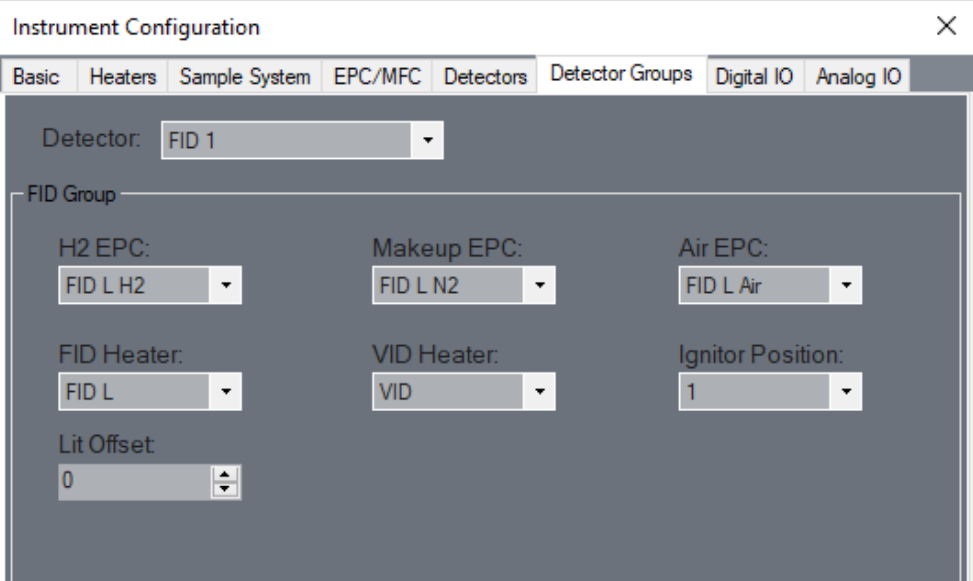
H2 EPC
The EPC that controls the pressure of the hydrogen source for the FID.Makeup EPC
The EPC responsible for regulating the makeup gas pressure for the FID.Air EPC
Controls the air pressure fed to the FID through its dedicated EPC.FID Heater
The heater linked to the FID, chosen from a list of Detector Heater types.VID Heater
The VID heater linked to the detector. Only VID-type heaters appear here.Ignitor Position
Defines which ignitor (1 or 2) the FID is connected to.Lit Offset
Sets the minimum value the FID must report to be considered 'lit'.
TCD Group
In the TCD Group Settings, users can select heaters for the TCD’s C and D channels.
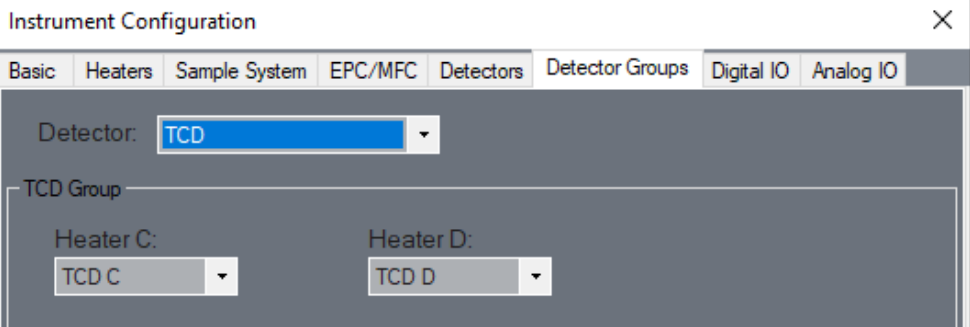
Heater C
Selects the heater connected to the TCD’s C channel, drawn from Detector Heater types.Heater D
Links the selected heater to the TCD’s D channel, pulled from Detector Heater types.
PDHID Group
The PDHID Group Settings link a heater to the PDHID detector.
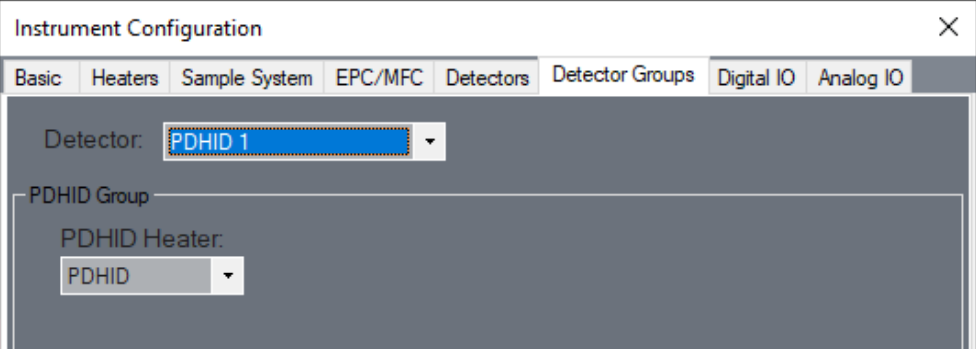
PDHID Heater
Links a heater to the PDHID detector, chosen from Detector Heater types.
Inlet
The Inlet Settings section enables users to define inlet names, select MFCs and BPCs, and associate them with detector groups.
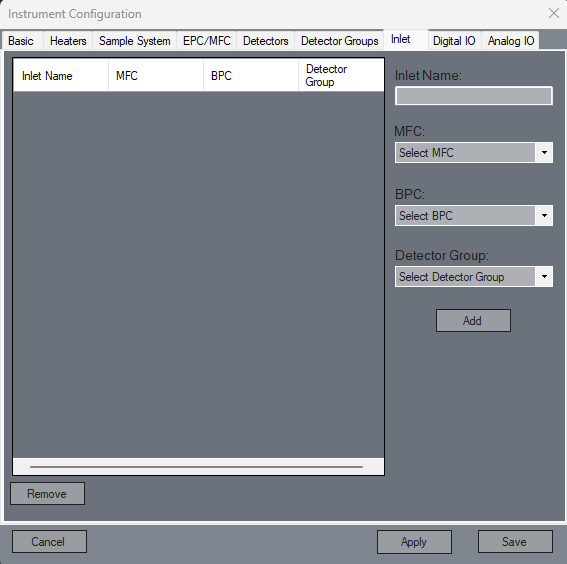
Inlet Name
The Inlet Name.MFC
Selection field to define MFC.BPC
Selection field to define BPC.Detector Group
Selection field to define Detector Group.Add
Add new Inlet into the table.Remove
Deletes the selected Inlet from the table.
Columns
The Column Settings section enables users to define column name, column dimensions, and associate them with Inlet, Detector group, and Oven.
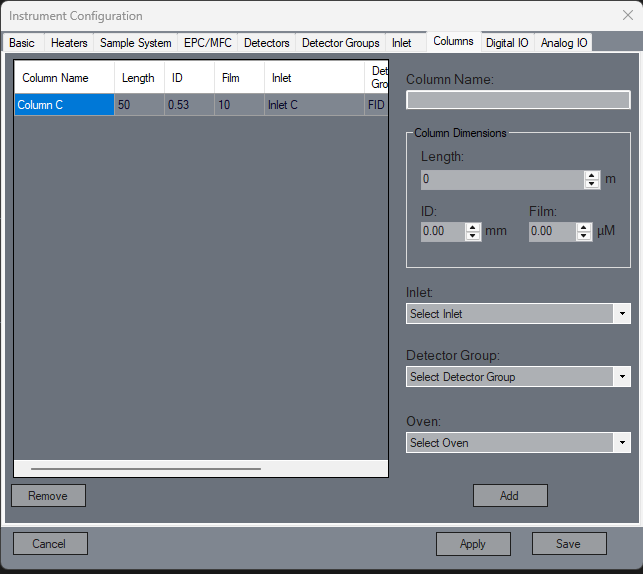
Column Name
The Column Name.Column Length
Numerator field to define column's length, it's value is in meters, and it increments by 1.Column Inner Diameter
Numerator field to define the column's inner diameter, it's value is in millimeters, and it increments by 0.1.Column Film Thickness
Numerator field to define the column's film thickness, it's value is in micrometers, and it increments by 0.1.Inlet
Selection field to define Inlet.Detector Group
Selection field to define Detector Group.Oven
Selection field to define Oven.Add
Add new Column into the table.Remove
Deletes the selected Column from the table.
Digital IO
In the Digital IO section, users manage digital IO channels for controlling valves, with options for unique identifiers and display names for clarity.
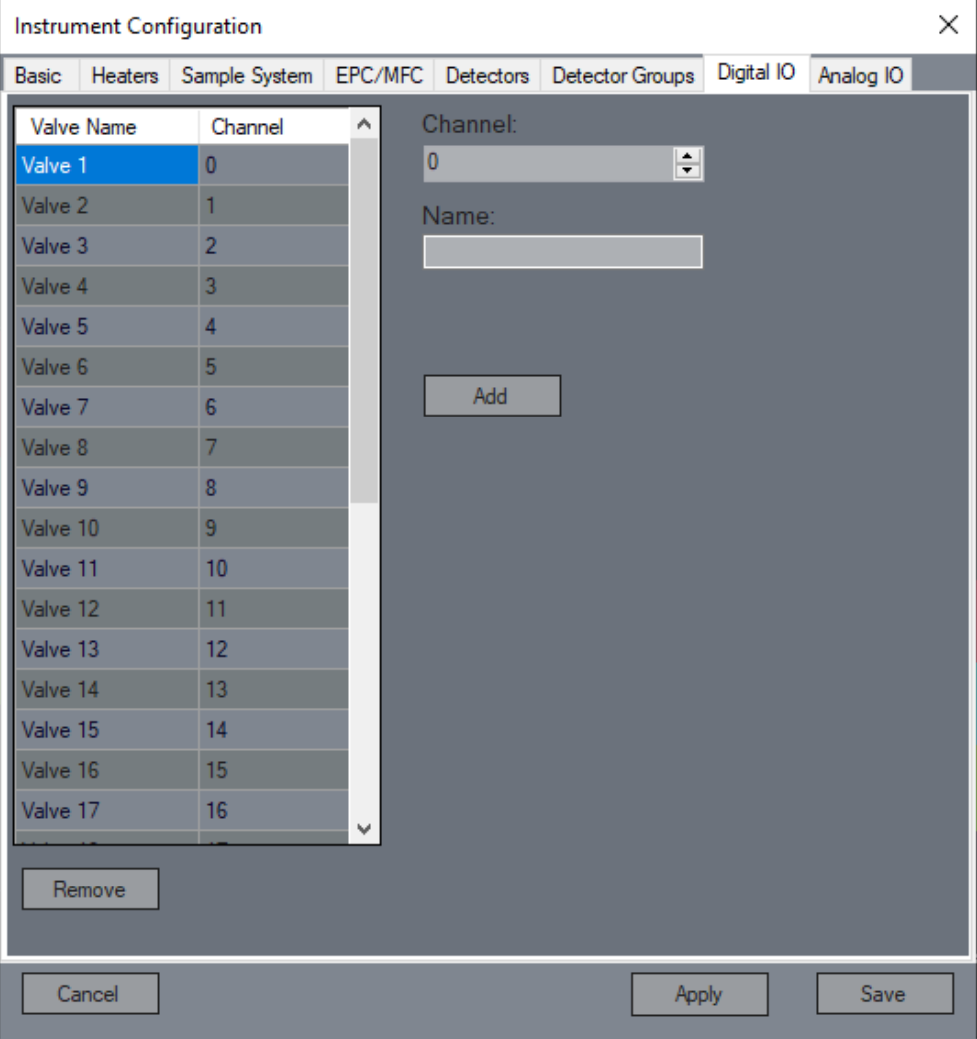
Channel
The unique identifier for each digital IO channel on the control board (0-31). Channels 14 and 15 are reserved for MCO fan controls.Name
Provides a display name for the channel.Add
Adds a new digital IO channel to the table with the specified settings.Remove
Deletes the selected digital IO channel from the table.
Analog IO
The Analog IO section allows users to configure channels for pressure transducers and other devices, including settings for device type, measurement ranges, and alarm triggers, ensuring precise data handling and monitoring.
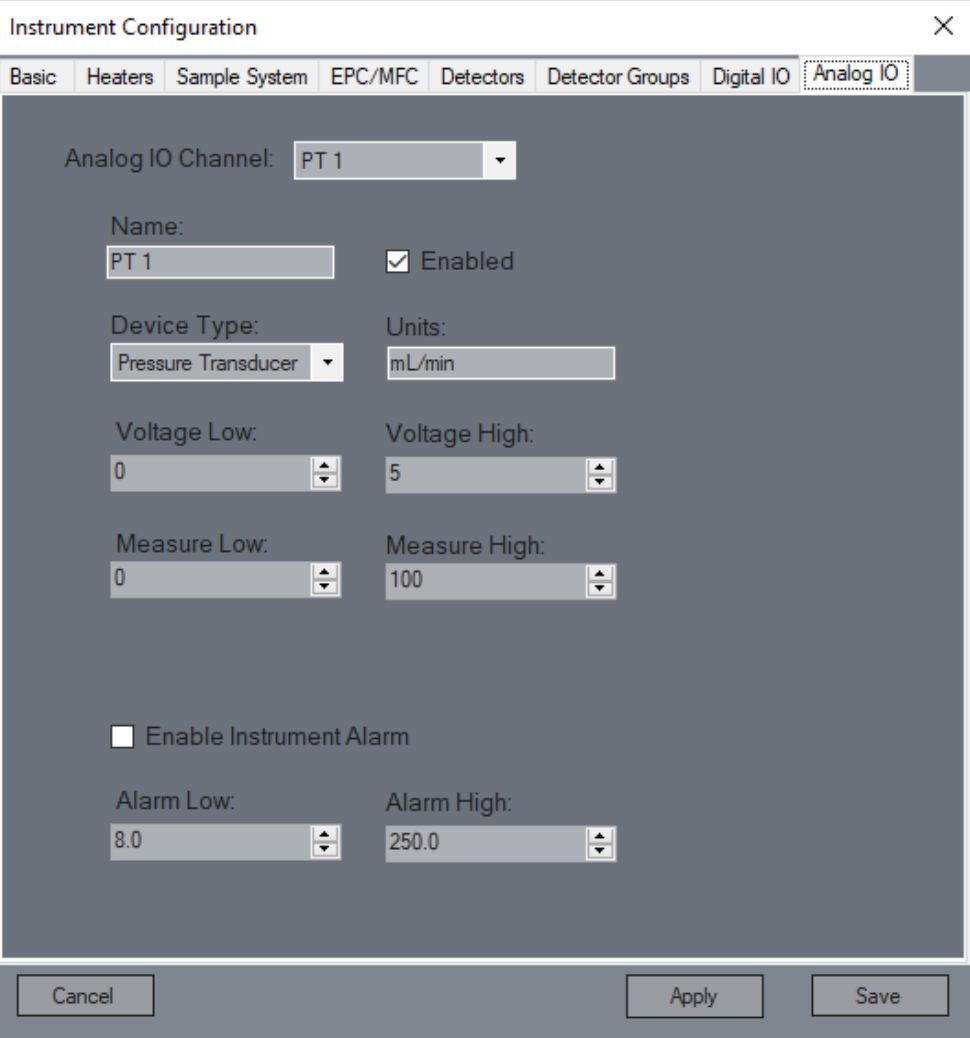
Select Analog IO Channel
Choose an analog IO channel from the list to view and modify its settings.Name
Assigns a display name to the selected channel.Enabled
Toggle to indicate whether a device is attached to the channel.Device Type
Select the type of device connected, such as a pressure transducer or PRT.Units
Sets the output units for the attached device.Voltage Low/High
Configures the voltage range for scaling the device's output.Measure Low/High
Defines the actual measurement range of the attached device for scaling purposes.Enable Instrument Alarm
If the device goes outside its predefined alarm range, this option triggers the instrument alarm.Alarm Low/High
Sets the acceptable range for the device before triggering the alarm.