Calibration Table
The Calibration Table is your control center for managing peaks and calibrations, ensuring accurate and reliable results throughout your analysis.
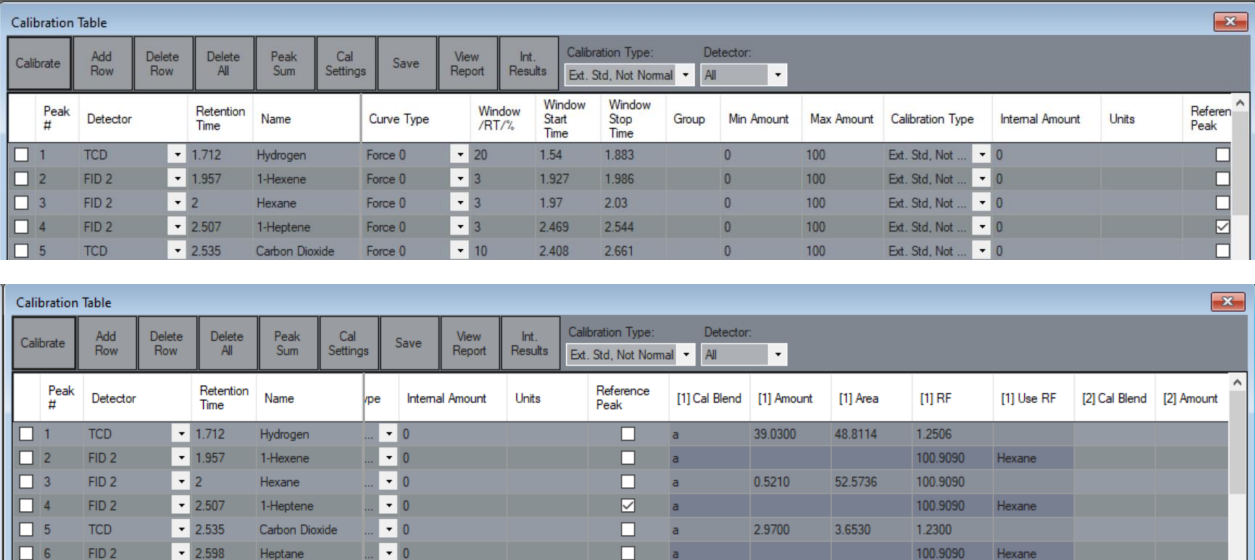
Calibrate
Launch the calibration screen to add peaks or recalibrate using the currently open data set, allowing you to refine your results.Add Row
Insert a new blank row into the calibration table, making room for additional data.Delete Row
Remove the currently selected row from the calibration table to keep your data organized.Delete All
Clear the entire calibration table with this option—use with caution!Peak Sum
Open a dedicated form to define peak sum times and settings, streamlining your data analysis.Calibration Settings
Access a form for configuring default calibration settings, ensuring consistency in your processes.Save
Save any modifications made to the calibration table, preserving your updates.View Report
Generate and display a report based on the current calibration table and the loaded run, facilitating thorough analysis.Integration Results
View all detected peaks from the run, including height, retention time (RT), area, and other relevant metrics.Calibration Type
Choose from various calibration types, such as External Standard, External Standard Normal, or Internal, to fit your needs.Detector
Display components specifically for the selected detector, providing focused insights.
Calibration Table Fields
Component Fields
Peak # A unique number for each component within the calibration table.
Detector Components are defined per-detector, the component will be integrated on the selected detector at the provided retention time
Retention Time Represents the expected retention time of the peak as located from application. This retention time defines the center of the peak window. The peak closest to this retention time within the window will be identified as this component.
Name Component name will be included in all reports and result files.
Curve Type The calibration curve types defines the method of calibration curve generation. Selecting the appropriate curve for your instrument and methodology is important for accurate results.
Force 0forces the calibration curve to intercept (0,0) and will result in a linear calibration function.Include 0includes (0,0) in the calibration function derivation and will result in a linear calibration function.Ignore 0ignores (0,0) in the calibration function derivation and will result in a linear calibration function.Splinewill derive a cubic function which fits the provided calibration points and will include (0,0). This type requires a minimum of two calibration levels.Quadraticwill perform a quadratic regression with the provided calibration points and will ignore (0,0). If two or fewer calibration levels are provided, anIgnore 0linear calibration curve will be used.
Window RT %, Window Start Time, and Window Stop Time Users may adjust either the Window RT % value to automatically generate a retention time window that has a width equal to RT% times the retention time. This will result in larger windows for peaks with longer retention times.
Alternatively, users may supply manual peak window Start and Stop times.
Group The group field allows users to define a custom group designator for the peak.
Min Amount and Max Amount Provides users a method of setting a soft limit on acceptable calibration level amounts.
Calibration Type Calibration Type defines the method of peak calibration.
External Standard, Not Normalizedcomponents are calibrated using explicit calibration standards via calibration runs using amounts provided in the calibration table. Component values are not modified after applying their response factors.External Standard, Normalizedcomponents are calibrated using explicit calibration standards via calibration runs using amounts provided in the calibration table. Component values are modified after applying their response factors so that all values sum to 100.Area %component amounts are reported as the percentage that the named peak's area is of the sum of all peaks across all signals.Area % Splitcomponent amounts are reported as the percentage that the named peak's area is of the sum of all peaks across the same signal.Weight (Wt) Percentextends area percent and should be used based on standard method requirements.
Reference Peak If checked, this peak will be the retention time reference peak for the signal. All peaks will have their retention time adjusted based on the error between this component's integrated retention time and expected retention time.
Calibration Level Fields
These fields are used for each calibration level. The prefix (e.g. [1]) represents the calibration level.
Cal Blend A user-defined identifier for the calibration blend for operator reference.
Amount The calibration blend's certified concentration/amount
Area The area from the latest calibration run's integrated peak
Response Factor (RF) Response factor is calculated based on Amount and Area when a calibration is triggered.
Use RF Supply a component name to mirror the Response Factor of. If supplied the component will use the same response factor as the specified component.
Calibration
Process of adjusting instrument responses for accurate measurements.
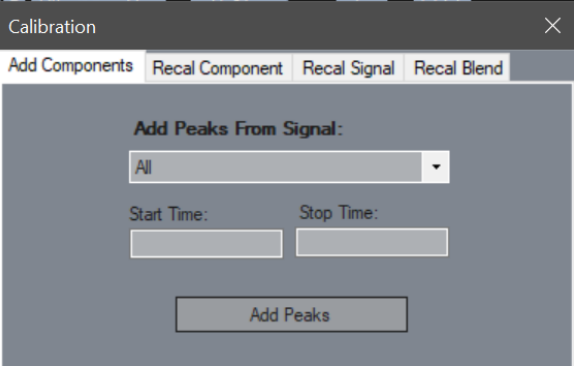
Add Components
Use this tab to add peaks from the specified detector during a selected time interval. Leave the start and stop times empty to include all peaks from the current run.Recal Component
Recalibrate a specific component in the calibration table for a designated level, ensuring accuracy.
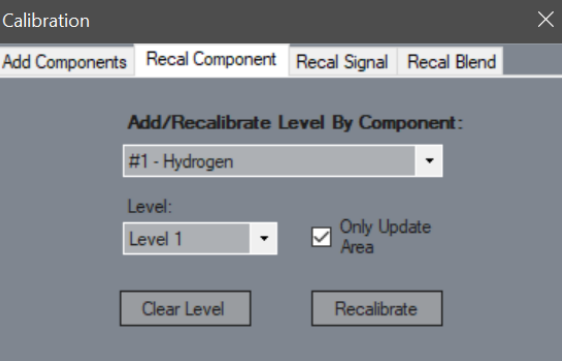
Only Update Area
Specify whether only the area should be updated for the component or if the entire level needs recalibration.Recal Signal
Recalibrate all components on a detector or signal at the specified level for comprehensive adjustments.
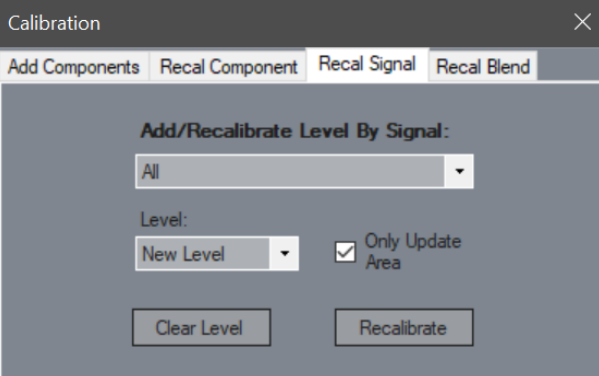
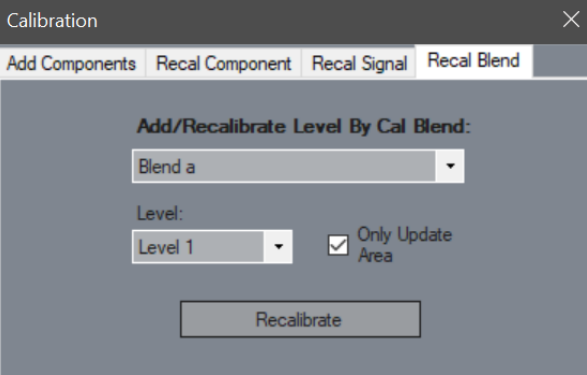
Recal Blend
Recalibrate all components within the specified calibration blend, optimizing your settings.
Peak Summing
Method for combining peak responses for enhanced analysis.
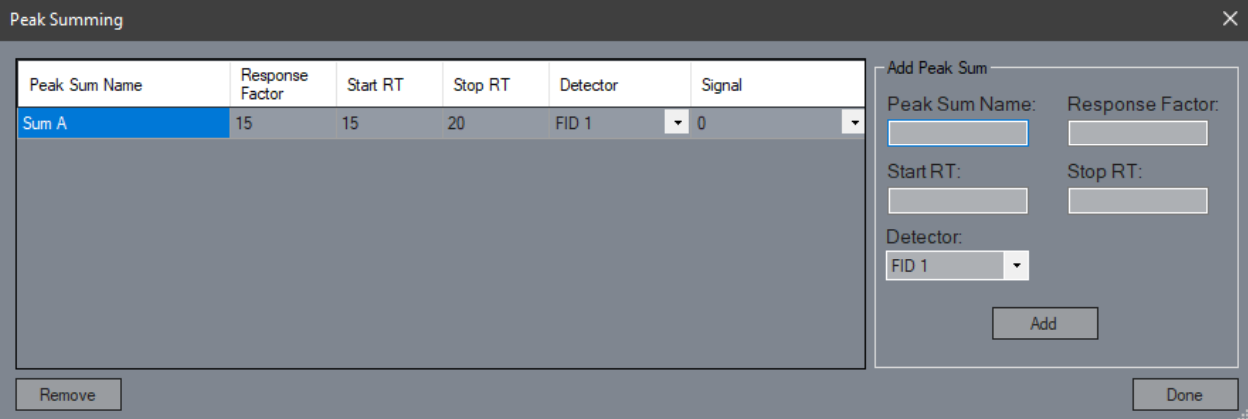
Peak Sum Name
Assign a name to the peak sum group for clear reporting.Response Factor
Input the response factor (RF) for the peak sum group to account for variances.Start RT/Stop RT
Define the time range for the peak sum group to focus your analysis.Detector
Specify which signal to sum for accurate peak summation.Add
Add the peak sum group to the table with the current settings for further processing.Remove
Eliminate the selected peak sum group from the table if no longer needed.Done
Close the form to finalize your peak summing adjustments.
Calibration Settings
Parameters defining how calibration is managed within the system.
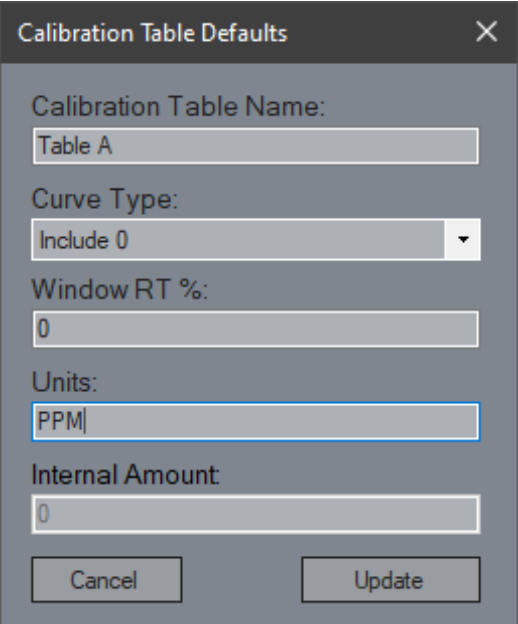
Table Name
Set the display name for the calibration table for easy reference.Curve Type
Define the default calibration curve type for new components to ensure consistency.Window RT %
Set the default window RT percentage for new components, optimizing your calibration process.Units
Specify the default units for new components to standardize measurements.Internal Amount
This value is used when employing internal standard calibration, enhancing accuracy.
Integration Results Table
The Integration Results Table displays all detected peaks from the run. If a peak appears in the calibration table, its corresponding component name will be shown.
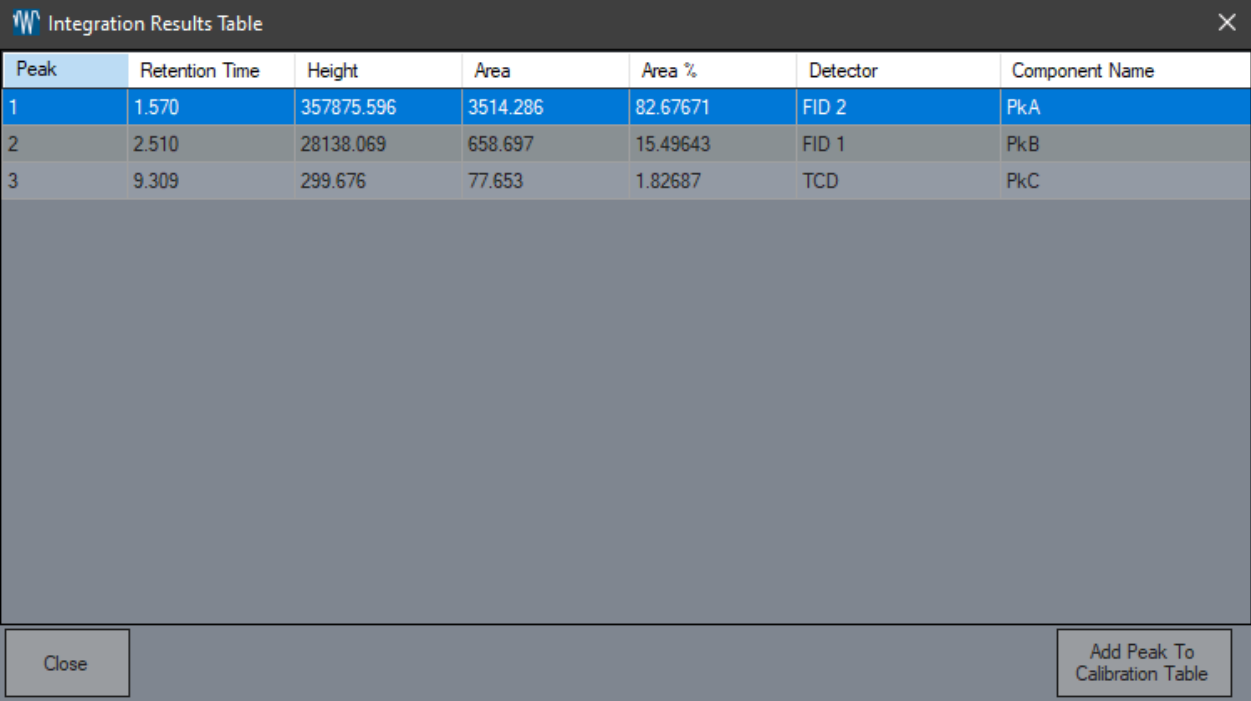
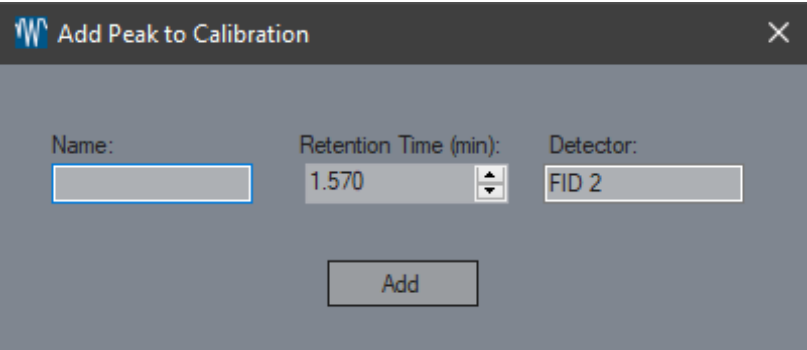
Add Peak To Calibration Table
Open a dialogue to add the selected peak to the calibration table, allowing you to name it and adjust the RT if necessary.
Close
Exit the form to return to your main interface, leaving your adjustments intact.