Analysis View
Once a run is complete or a data set has been loaded, the Analysis View springs to life, showcasing the chromatogram, calibration table, and integration events for a thorough review.
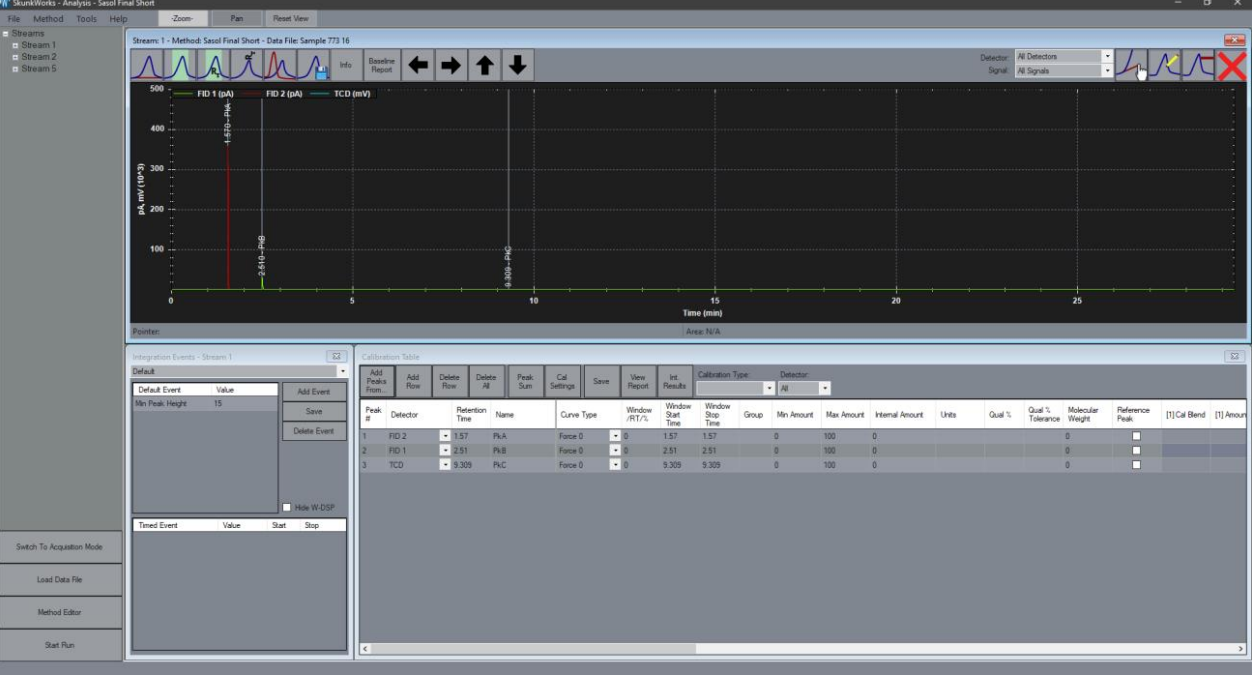
Chromatogram
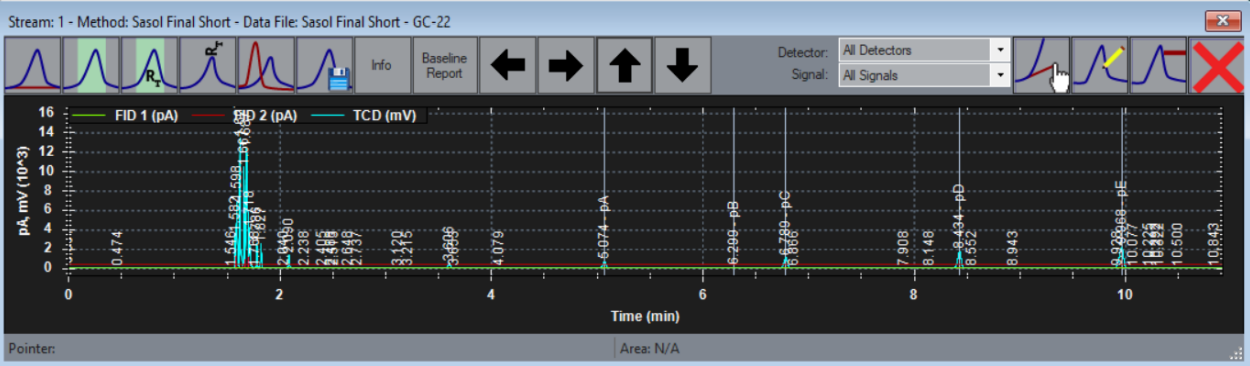
Visual representation of chemical data over time.
Draw Baselines
Toggle this feature to enable or disable drawing baselines beneath all detected peaks, helping you visualize your data more clearly.Fill Peak Width
Fill the area behind all identified peaks with color for better visibility. Enable or disable this feature as needed.Fill Retention Times
Control the display of retention time windows in the calibration table by filling the area behind them. Turn this feature on or off at your convenience.Show Peak Labels
Opt to display peak retention times and names by enabling or disabling this option, keeping your view clean or informative.Multi Signal Select
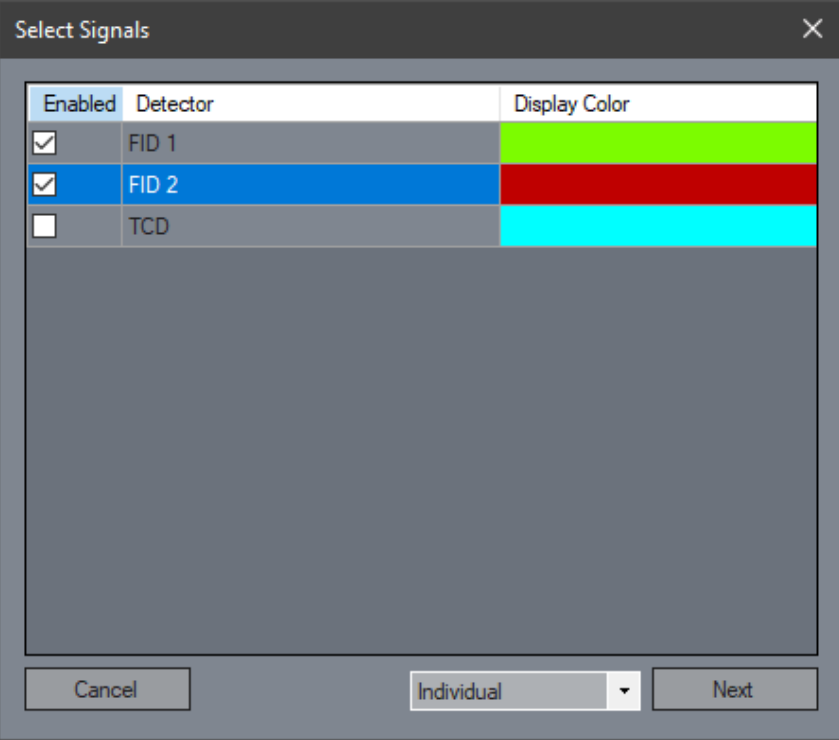
Dive deeper! Open a dedicated screen to select signals to overlay or view separately, providing flexibility in your analysis.Save Image
Preserve your current view as a .png or .pdf file for documentation or reporting purposes.Info
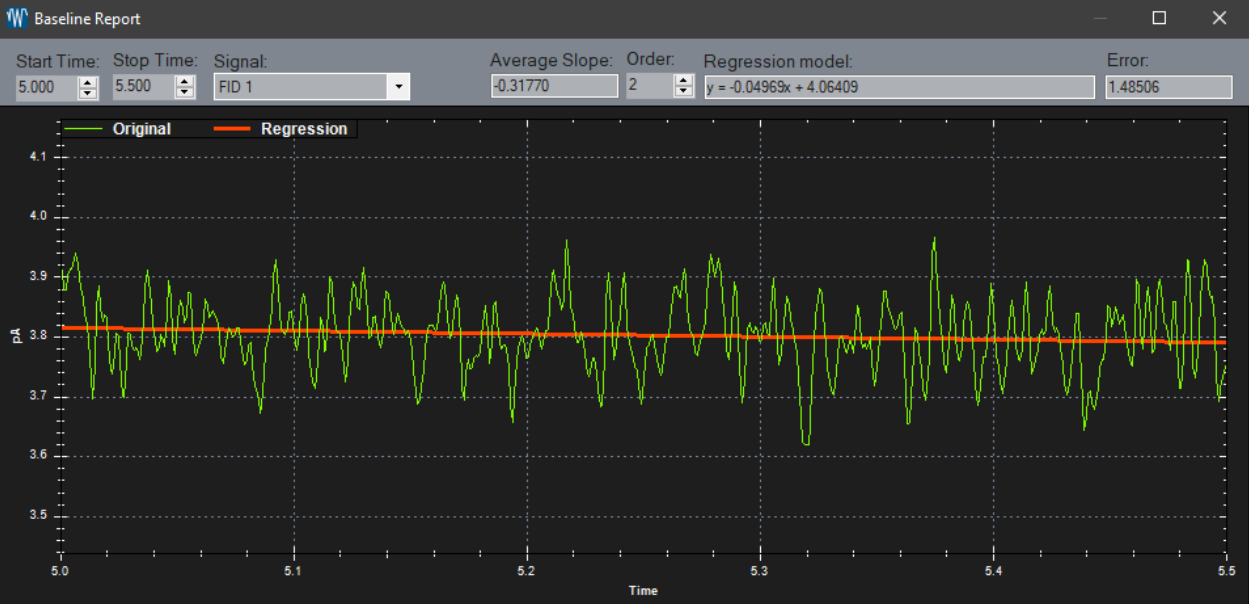
Access detailed method information from when the sample was collected, giving you context for your analysis.Baseline Report
Analyze the signal data over a specified time period, helping to identify trends and anomalies.Left Arrow
Shorten the viewable time axis for a more compact analysis view.Right Arrow
Expand the viewable time axis to get a broader view of your data.Up Arrow
Zoom in on the y-axis to emphasize details in your signal data.Down Arrow
Compress the y-axis for a more condensed view of your results.Detector Select
View all signals for a detector that has multiple signal outputs (like MSD) to ensure you’re capturing all relevant data.Signal Select
Easily switch between available signals or focus on one of interest to streamline your analysis process.Manual Integration Add Peak
Enter manual integration mode to add a new peak to your dataset. Simply click on the chromatogram to define the bounds.Manual Integration Edit Peak
Modify an existing peak by clicking on it and selecting new bounds, ensuring your data remains accurate.Manual Integration Remove Peak
Delete a peak in 'Edit Peak' mode to keep your dataset tidy.Manual Integration Cancel
Exit manual integration mode without saving changes if you decide to rethink your adjustments.Pointer
Track the current (x,y) position of your mouse while hovering over the chromatogram, helping you pinpoint specific data points.Area
Display the area of a selected peak, but note that peaks can only be selected when viewing a single signal for precise analysis.
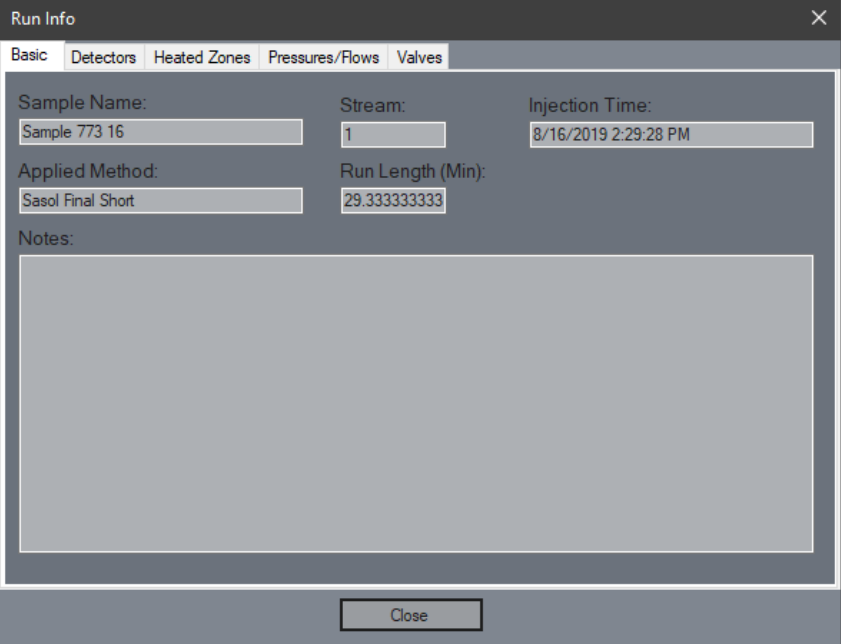
Run Info
Discover the method settings used during the sample collection, providing essential background for your results.
Baseline Report
Conduct an analysis of the signal at a specified time, perfect for scrutinizing performance.
Multi Signal Select
Choose any combination of signals to overlay or view individually, enhancing your comparative analysis.
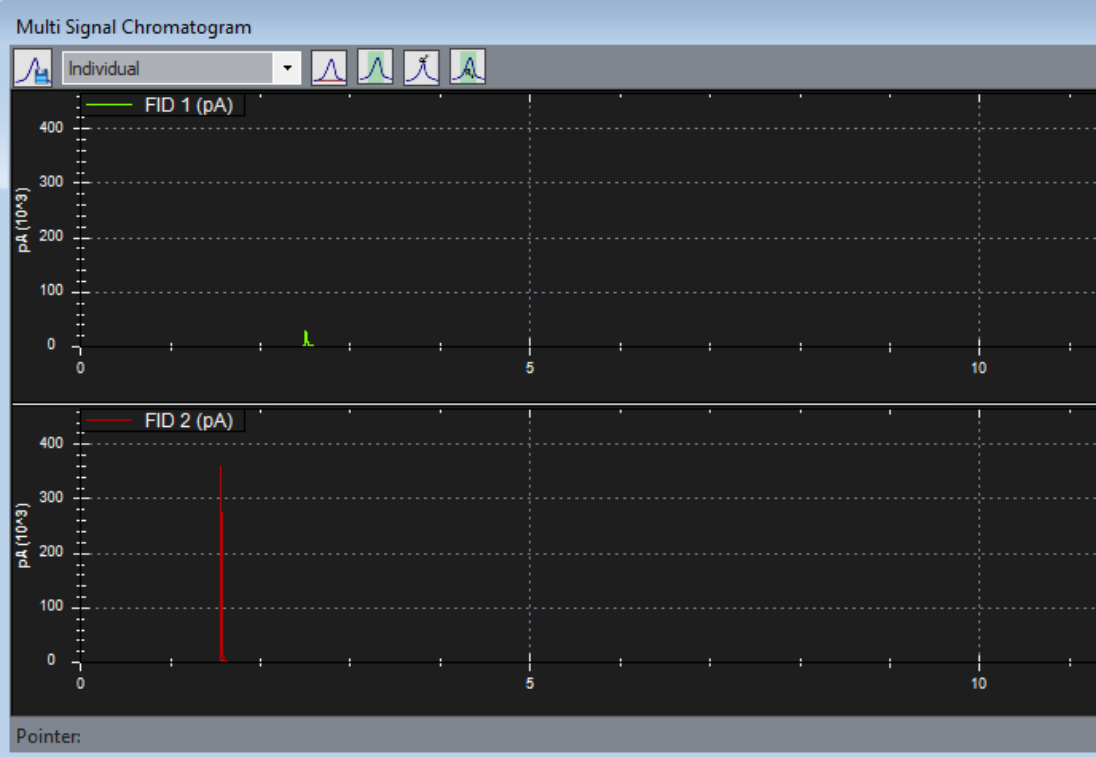
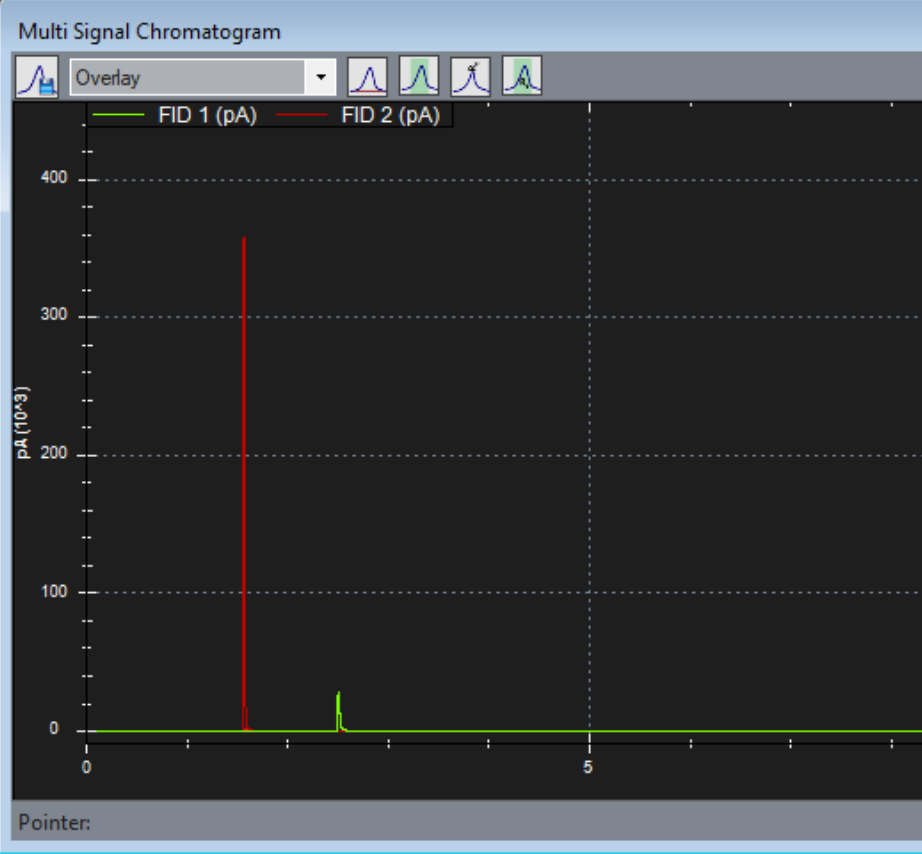
Draw Baselines
Enable or disable the drawing of baselines under peaks for clarity.Fill Peak Width
Adjust the fill for peaks to highlight their significance visually.Fill Retention Times
Control the visual representation of retention times in your calibration table.Show Peak Labels
Opt to display or hide retention times and peak names based on your preference.Save Image
Keep a record of your analysis by saving the current view as a .png or .pdf file.
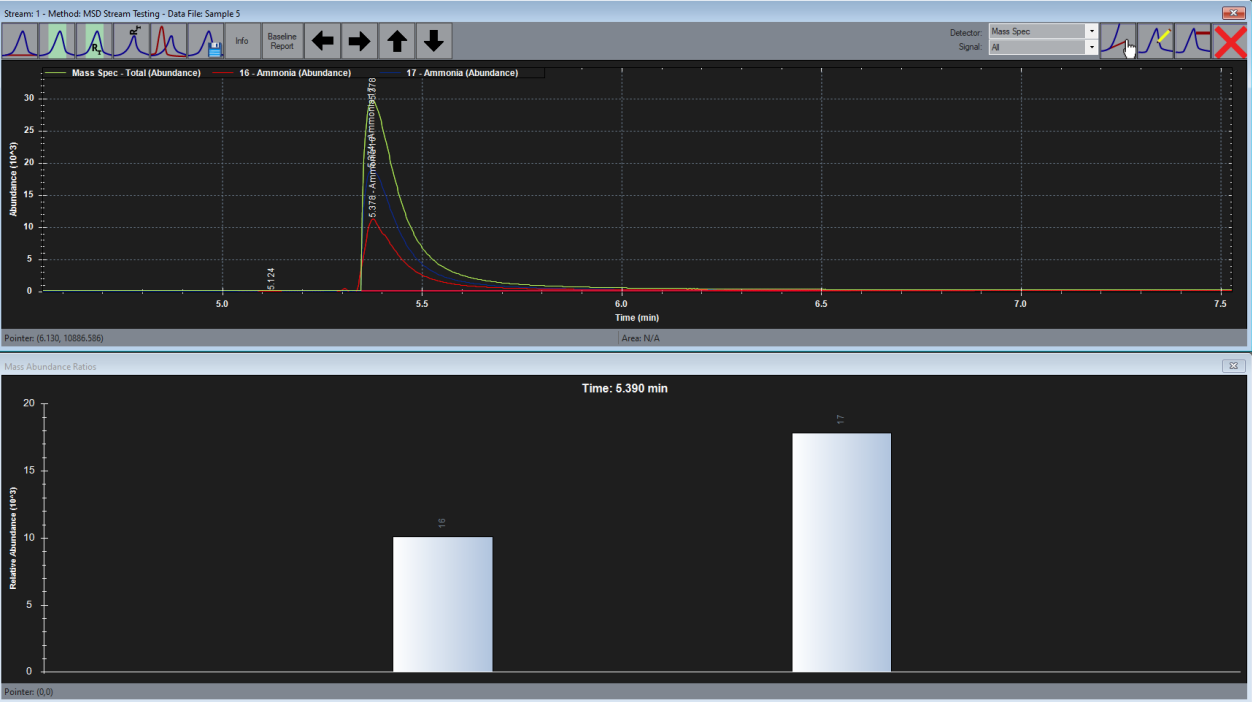
MSD Abundance Ratio
For datasets with MSD enabled, simply double-click anywhere on the chromatogram to reveal the abundance ratio at that precise moment, adding depth to your analysis.