Application Preferences
Settings that customize the application's behavior and functionality.
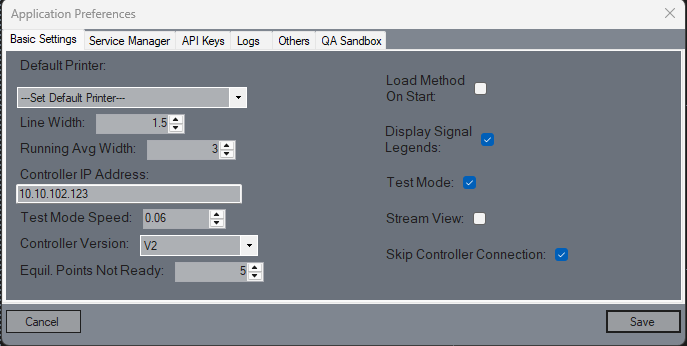
Basic Settings
Configure core settings to adjust how the application operates.
Default Printer
Choose your go-to printer for printing reports and documents effortlessly.Line Width
Adjust the width of signals on chromatograms for better visibility and clarity in your data presentation.Running Average Width
Smooth out your chromatograms with graphical averaging, enhancing the readability of your results.Stream View
Control your data display! Check this option to view data sets ran against streams, or uncheck it for method-based views. Defaulted to checked when running through WinIStatus.Load Method on Start
Streamline your workflow! If enabled, the last loaded method will automatically be sent to the instrument and prepped upon Skunkworks startup.Test Mode
Simulate your runs! When checked, this mode allows you to process simulated runs and data, perfect for testing scenarios.Controller IP Address
Input the IP address of the Eclipse Control Board here. This crucial value will be set and provided during installation for seamless connectivity.Equilibration Points Not Ready
Define the tolerance for how long a heated zone or EPC/MFC can remain outside the ‘Ready’ state before the equilibration timer resets.Controller Version
Specify the model of your Eclipse Controller here. This helps Skunkworks communicate effectively with the Eclipse unit, ensuring compatibility.Cancel
Not ready to commit? Discard any changes made to revert back to the last saved settings.Save
Finalize your configurations! Click to save all changes and close the preferences form, ensuring your adjustments are applied.
Service Manager
Configure core settings to adjust how the application operates.
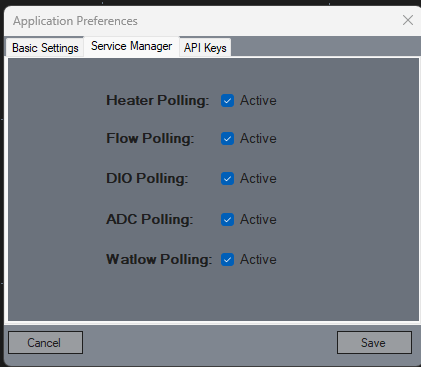
Heater Polling
Toggle to activate or deactivate the polling for status and temperature of the heaters.Flow Polling
Toggle to activate or deactivate the polling for flow devices.DIO Polling
Toggle to activate or deactivate the polling for status of digital IO channels.ADC Polling
Toggle to activate or deactivate the polling for data from analog-to-digital converters (ADC).Watlow Polling
Toggle to activate or deactivate the polling for Watlow controllers.
API Keys
Secure and manage API keys to control external access to the application’s data and functionality.
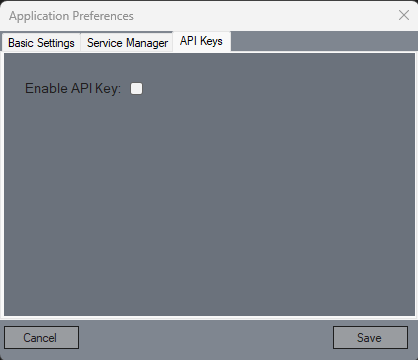
Enable API Key
Toggle to activate or deactivate the use of an API key for external access.
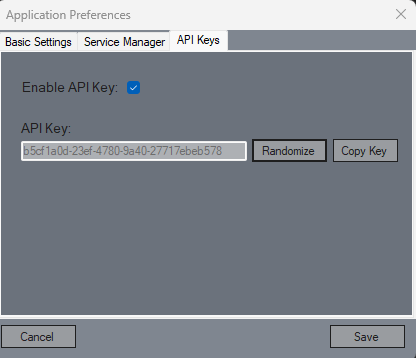
API Key
Displays the current API key that is used for authenticated requests, it is a readonly field.Randomize Button
Generates a new, random API key for enhanced security.Copy Key Button
Quickly copy the displayed API key to use in external integrations or setups.
Logs
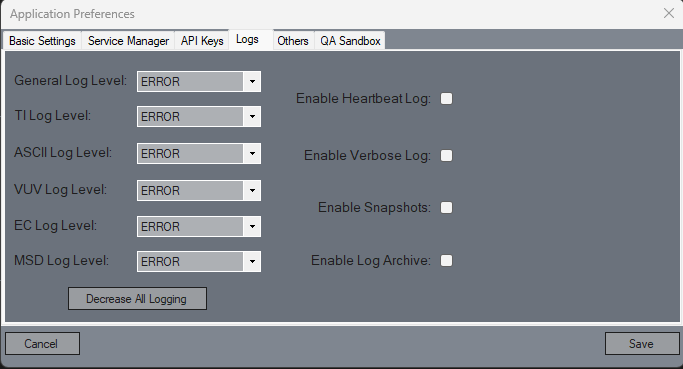
Configure advanced logging options to monitor and troubleshoot the application’s behavior with heartbeat and verbose logs, as well as optional snapshot and archive logs.
General Log Level
Controls the default logging level for the application’s general (root) logger. This setting affects all logs that do not have a more specific logger configuration. Lower levels produce more detailed logs, while higher levels restrict output to critical issues only.TI Log Level
Sets the logging level for TI logs.ASCII Log Level
Sets the logging level for ASCII logs.VUV Log Level
Sets the logging level for VUV logs.EC Log Level
Sets the logging level for Eclipse Core (EC) logs.MSD Log Level
Sets the logging level for MSD logs.Decrease All Logging Button
Sets all log levels (General, TI, ASCII, VUV, EC, and MSD) to ERROR. This provides a quick way to reduce log verbosity across the entire application.Enable Heartbeat Log
Toggles logging of periodic heartbeat events. When enabled, an interval field appears where you can set the time (in seconds) between each heartbeat log entry.Enable Verbose Log
Toggles verbose logging for detailed diagnostic information. When enabled, a field appears to define how often these logs should be written.Enable Snapshots
Enables snapshot logging, which captures and stores the system’s current state at various moments. This is typically used for deeper diagnostics and auditing.Enable Log Archive
Enables log archiving, which periodically stores older logs in a compressed format for long-term storage and analysis.
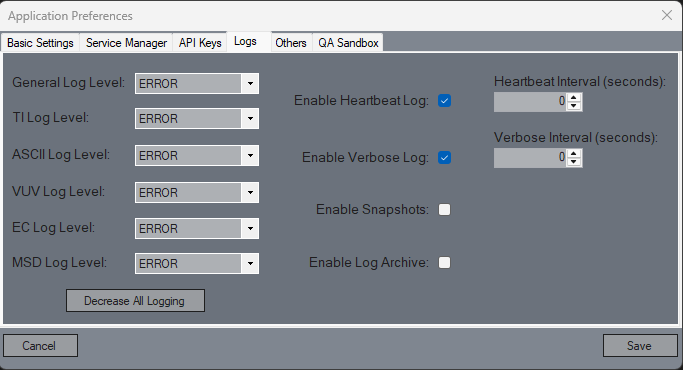
Heartbeat Interval (seconds)
Defines how frequently heartbeat events are logged when heartbeat logging is enabled.Verbose Interval (seconds)
Sets the frequency (in seconds) at which verbose log entries are recorded.
Others
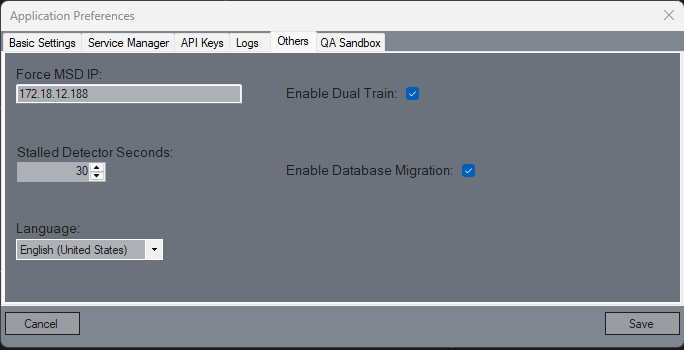
This section includes optional tools and configurations that can be used to enhance the functionality of the application.
Force MSD IP
Allows you to input a valid IP address to override the MSD's default IP configured in the Method. This is primarily used for fetching data from local MSDs.Enable Dual Train
Enables the use of Dual Train mode in Skunkworks, allowing a second Skunkworks instance to run concurrently with the first one.Stalled Detector Seconds
Specifies the time (in seconds) that a detector can remain inactive before being considered "stalled". This configuration helps identify and handle situations where the detector is not returning valid data for the configured duration. When the value of this preference is zero, it will not check if the detector is stalled. After it gets stalled, Skunkworks will automatically show a message and abort the run.Language
Select the application's display language from the available options.Enable Datbase Migration
Allows the application to automatically apply database schema updates when available, and start utilizing the database instead of flat files.